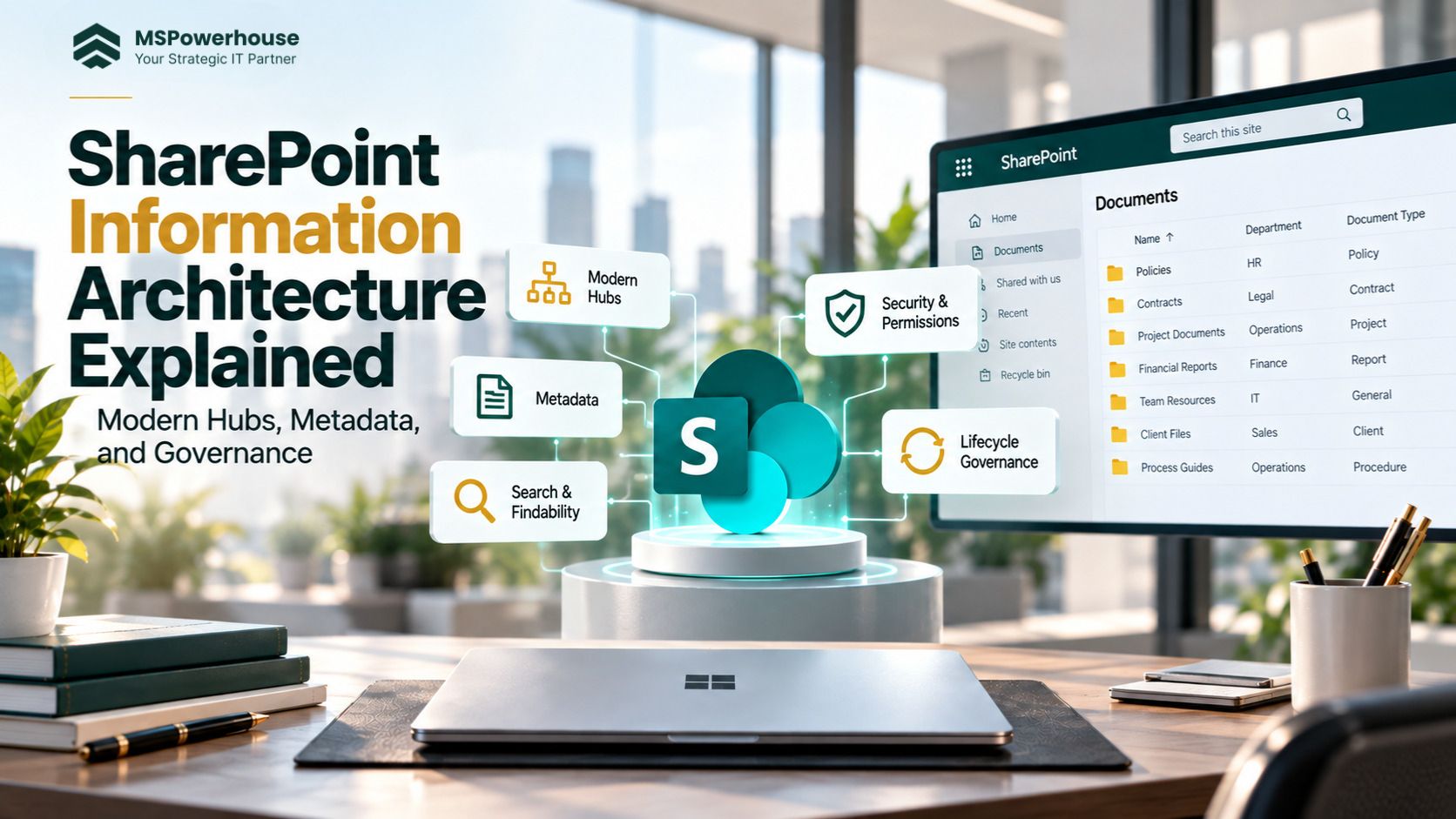
Document management becomes seamless when your technical structure reflects how employees search, secure, retain, and collaborate on information. In Microsoft 365, information architecture (IA) is far more than site styling or intranet aesthetics. It is the underlying structure that influences navigation, permissions, content organization, search relevance, governance, and how effectively employees can work with information.
For organizations evaluating modern SharePoint information architecture, the primary challenge is rarely software capability. The critical hurdle is designing a structure that balances human usability with administrative governance.
A well-designed SharePoint environment feels intuitive and uncluttered to everyday users while giving administrators clear ownership, security boundaries, lifecycle controls, and governance processes behind the scenes.
When architecture is neglected, tenants can develop sprawling folder trees, inconsistent permissions, duplicate records, abandoned sites, and increasingly difficult search experiences.
This guide breaks down the core pillars of modern SharePoint information architecture, contrasting legacy patterns with modern hub-based architecture, metadata, security boundaries, and AI-ready governance.
A disciplined information architecture makes information easier to find, govern, and secure. By using a flat site structure, appropriate hubs, purposeful libraries, metadata, and clearly defined permissions, organizations can improve discoverability while reducing unnecessary architectural complexity.
The 5 Core Pillars of Modern SharePoint Architecture
Microsoft's SharePoint information architecture principles emphasize designing around how people use and find information rather than simply reproducing an organization's existing file-server structure.
Flat Site Topology Connected by Hubs
Moving away from deep subsite hierarchies and toward independent sites connected through SharePoint Hub Sites.
Clear Separation Between Communication and Collaboration
Choosing Communication Sites and Team Sites according to how information is published, consumed, and worked on.
Purposeful Document Libraries and Security Boundaries
Using libraries and sites deliberately rather than creating complex networks of lower-level unique permissions.
Managed Metadata and Enterprise Taxonomies
Using structured metadata and content types to make information discoverable from multiple business perspectives.
Search, Findability, and AI-Ready Governance
Designing the information environment so search and AI experiences operate within clear authorization and governance boundaries.
1. Flat Site Topology Connected by Hubs
Moving Away From Deep Subsites
Legacy SharePoint environments were often designed around hierarchical structures in which a parent site contained multiple subsites, sometimes followed by additional layers of subsites.
Modern SharePoint takes a different approach.
Microsoft recommends a flatter architecture in which individual sites represent discrete topics, functions, projects, or business units. Related sites can then be associated with a SharePoint Hub Site.
The important distinction is that modern SharePoint recommends a flat architecture rather than technically enforcing one.
Why Deep Site Hierarchies Create Problems
- Complex permission inheritance: Permissions can become difficult to understand when different sites, libraries, folders, and files have different access configurations.
- Long paths: Deep site and folder structures can contribute to excessively long file paths. SharePoint and OneDrive currently support a decoded file path, including the filename, of up to 400 characters.
- Reorganization complexity: Business structures change. When a department, project, or function moves, a heavily hierarchical architecture can make navigation and governance harder to maintain.
- Poor discoverability: Users may have difficulty knowing which site or subsite should contain a particular document.
- Administrative overhead: More layers create more places to review ownership, permissions, lifecycle policies, and content.
The Modern Alternative: Hub-Based Architecture
                    Operations Hub
                         │
          ┌──────────────┼──────────────┐
          │              │              │
      Finance        Procurement      Facilities
        Site             Site            Site
The individual sites remain separate, while the hub provides shared navigation, branding, and other cross-site experiences.
This means the relationship between sites is based on association rather than a rigid parent-child hierarchy.
Why This Matters
If Finance moves under a different business function, the architecture does not necessarily need to be rebuilt as a nested site structure.
The site can remain an independent unit and its hub association or navigation can be changed.
That flexibility is one of the major advantages of modern SharePoint architecture.
2. Structural Separation: Communication Sites vs. Team Sites
One of the most important architectural decisions is understanding whether a site exists primarily to communicate information or to collaborate on work.
Microsoft distinguishes between Communication Sites and Team Sites for these different use cases. Communication Sites are designed primarily for broadcasting information, while Team Sites are designed for collaboration.
| Architecture Dimension | Communication Sites | Team Sites |
|---|---|---|
| Core Purpose | Broadcasting authoritative information such as company news, policies, announcements, and resources | Collaboration around projects, departments, operational work, and shared deliverables |
| Typical Audience | Broad organizational audience | A defined team, department, project, or working group |
| Content Model | Read-heavy publishing | Collaborative creation and editing |
| Permissions | Typically managed through SharePoint Owners, Members, and Visitors groups | Commonly managed through the associated Microsoft 365 Group for group-connected Team Sites |
| Microsoft 365 Integration | Can be associated with hubs and other Microsoft 365 experiences | Group-connected Team Sites can integrate with Microsoft 365 Groups and related services |
| Typical Examples | Corporate intranet, HR portal, company news, executive communications | Finance team, project team, operations team, department workspace |
Communication Sites
A Communication Site is appropriate when a relatively small group of people publishes information for a broader audience.
Common examples include:
- HR policies
- Company announcements
- Employee resources
- Corporate news
- Executive communications
- Internal knowledge portals
The objective is generally findability and communication, not unrestricted collaboration.
Team Sites
Team Sites are designed around active collaboration.
Typical use cases include:
- Departmental work
- Project delivery
- Operational documentation
- Shared working files
- Team processes
- Collaboration around ongoing business activities
Modern Team Sites are commonly connected to Microsoft 365 Groups. Microsoft notes that group-connected Team Sites can be associated with services such as a mailbox, shared calendar, and Planner. A Team Site may also be associated with Microsoft Teams.
However, it is important not to treat every SharePoint Team Site as automatically being identical to a Microsoft Teams team. The exact configuration depends on how the site and Microsoft 365 services are provisioned.
The Architectural Principle
Do not create one giant SharePoint site and expect it to serve every purpose.
Instead, ask:
Who is this information for, and how is the information used?
If the answer is "everyone needs to read it," a Communication Site may be appropriate.
If the answer is "a defined group needs to work on it together," a Team Site may be more appropriate.
3. Libraries as Security and Content Boundaries
One of the most common SharePoint architecture mistakes is treating a document library as though it were simply a traditional Windows file share.
Organizations frequently reproduce structures such as:
HR
 └── Employees
      └── 2026
           └── Payroll
                └── Confidential
The problem is not that folders are inherently bad.
Microsoft's modern SharePoint guidance recognizes that folders can still be useful. The issue arises when organizations rely on deep folder structures as their primary method of organizing information or repeatedly break permission inheritance at lower levels.
Use the Right Security Boundary
If two sets of documents have fundamentally different access requirements, consider separating them into different libraries or sites rather than creating a complicated network of unique folder permissions.
HR Site
│
├── HR Policies Library
│
├── Recruitment Library
│
└── Employee Records Library
Each library can have an appropriate permission model and governance approach.
Why Unique Permissions Need Attention
SharePoint supports unique permission scopes for files and folders, but large numbers of unique permission scopes can create management and performance concerns.
Microsoft currently states that a document library can contain up to 50,000 unique ACLs, while recommending that organizations keep the number below 5,000 for best performance.
That figure should not be confused with the separate 5,000-item List View Threshold, which concerns how large lists and libraries are handled in views and queries.
The Architectural Rule
Instead of asking:
"How can we create another restricted folder?"
Ask:
"Does this content belong in the same security boundary at all?"
That shift usually produces a cleaner architecture.
4. Managed Metadata and Enterprise Taxonomies
Folders provide one primary organizational path.
For example:
Year
   ↓
Client
   ↓
Department
But businesses often need to view the same content from multiple perspectives.
An employee may want to find:
- All contracts expiring this quarter
- All documents belonging to a specific client
- All policies owned by HR
- All documents related to a particular project
- All records classified as "Approved"
Managed metadata allows organizations to add structured information to documents without forcing users to move files into different folders.
The Term Store
SharePoint's managed metadata capabilities allow organizations to create centrally managed term sets and use those terms through managed metadata columns.
Department
├── Finance
├── Human Resources
├── IT
├── Operations
└── Sales
A standardized taxonomy can help ensure that different departments use consistent terminology.
Site Columns and Content Types
Reusable site columns can capture information such as:
- Document Type
- Department
- Client
- Project
- Document Status
- Expiration Date
- Content Owner
Content Types can then combine metadata and document-management requirements into reusable structures.
For example, a Contract content type could include:
- Contract Type
- Counterparty
- Expiration Date
- Contract Owner
- Business Unit
Dynamic Views and Search
Once content is consistently tagged, users can filter and organize information through views and search experiences rather than navigating through dozens of folders.
One document
      ↓
Department: Legal
Client: ABC Corp
Document Type: Contract
Status: Active
Expiration: Q4 2026
The same document can then be discovered through several different business perspectives.
5. AI Grounding, Search, and Copilot Findability
Information architecture has become increasingly important as organizations adopt Microsoft 365 Copilot and other AI-powered experiences.
But one distinction is critical:
Copilot does not simply ignore SharePoint permissions and expose everything it can find.
The architectural risk is therefore often oversharing: information may be technically accessible to users who were never expected to find or use it, and AI-powered search can make that information easier to discover.
Microsoft's current guidance specifically recommends reviewing SharePoint permissions and governance as part of Copilot readiness.
What Poor Architecture Can Cause
Suppose a company has an HR site where confidential documents were accidentally shared with a broad employee group.
Before AI search, an employee might never know that those documents existed.
With increasingly powerful enterprise search and AI experiences, information that is already accessible to that employee may become easier to discover.
The underlying issue is therefore not that Copilot "breaks" SharePoint permissions.
The issue is that existing permissions and information architecture determine what content a user is already allowed to discover and use.
Restricted Content Discovery
Microsoft provides Restricted Content Discovery as a governance control that can limit discovery of content from selected SharePoint sites in organization-wide search and Microsoft Copilot experiences.
However, it is important to understand what this feature does and does not do.
Restricted Content Discovery:
- Limits broad discovery of content from selected SharePoint sites.
- Can help organizations review high-risk sites during Copilot rollout.
- Does not change existing SharePoint permissions.
- Does not remove content from the search index.
- Does not prevent users who already have permission from directly accessing the content.
- Is intended as a temporary governance control while organizations review access and content governance.
AI-Ready Information Architecture
A stronger approach combines:
- Clear site ownership
- Appropriate security groups
- Sensible permission boundaries
- Managed metadata
- Consistent content types
- Lifecycle governance
- Search optimization
- Microsoft Purview controls where appropriate
- SharePoint Advanced Management capabilities where appropriate
The objective is not simply to make Copilot "find more."
It is to make sure Copilot can find the right information within the user's authorized information boundary.
Strategic Architecture Blueprint: Legacy vs. Modern
| Architectural Component | Legacy Pattern / Anti-Pattern | Modern Microsoft 365 Approach |
|---|---|---|
| Site Hierarchy | Deep parent/subsite structures | Independent sites connected through hubs |
| Content Organization | Deep folder trees copied from legacy file servers | Purposeful libraries, shallow folders where useful, and metadata |
| Security Model | Large numbers of unique permissions at folder/file level | Permissions designed around sites, libraries, groups, and clearly defined access boundaries |
| Navigation | Static navigation tied heavily to hierarchy | Hub navigation and user-oriented information architecture |
| Metadata | File names and folders carry most of the context | Structured metadata, content types, columns, and search |
| Storage & Versioning | Unmanaged version growth and poorly governed content | Configured version-history policies, lifecycle governance, and appropriate storage planning |
| Search | Primarily dependent on file names and folder navigation | Search supported by metadata, content structure, permissions, and curated organizational information |
| AI Readiness | Broad or unclear access and inconsistent content | Permission-aware, governed, structured content designed for better discoverability |
Modern SharePoint guidance specifically recommends moving away from subsite-heavy architecture and using hubs to connect related sites.
5-Step Implementation Roadmap for Enterprise Architects
Executing an information architecture redesign requires more than reorganizing folders.
A successful redesign should combine content inventory, ownership, security, metadata, migration, and ongoing governance.
Content Inventory, Ownership Mapping, and Security Auditing
Before moving or restructuring files, conduct a tenant and content inventory.
Review:
- Active and inactive sites
- Large libraries
- Duplicate content
- External sharing
- Broad permissions
- Unique permission scopes
- Content ownership
- Sensitive information
- Retention requirements
- Existing metadata
- Business-critical content
Use SharePoint governance capabilities and Microsoft 365 reporting to understand the current environment.
Then interview department owners:
- Who owns this information?
- Who approves access?
- Who is responsible for its accuracy?
- How long should it be retained?
- Which users actually need access?
- What happens when the business process ends?
Action item: Group content into clear business and security domains before designing new sites.
Design a Flat Site and Hub Topology
Map business functions into independent sites.
Corporate Intranet Hub
│
├── HR
├── Finance
├── IT
├── Operations
└── Corporate Communications
A separate operational hub might look like:
Operations Hub
│
├── Procurement
├── Facilities
├── Logistics
└── Vendor Management
The objective is not to reproduce the company's organizational chart one-to-one.
Instead, design sites around how information is actually created, consumed, governed, and accessed.
Use hubs to connect related sites where shared navigation, branding, and discovery make sense.
Define Metadata Taxonomies and Content Types
Configure standardized metadata where it provides genuine business value.
Potential fields include:
- Document Type
- Department
- Business Unit
- Client
- Project
- Document Status
- Content Owner
- Review Date
- Expiration Date
Use the Term Store and reusable site columns where centralized terminology is beneficial.
Avoid Metadata Overengineering
There is no Microsoft rule requiring organizations to limit mandatory metadata fields to two per library.
Instead, use a practical rule:
Make a metadata field mandatory when the business cannot reliably govern, find, classify, or process the document without it.
If a field adds no meaningful operational value, do not make users populate it simply because the field exists.
Execute Phased Migration With Path and Structure Remediation
When migrating from file shares or legacy SharePoint environments, do not simply copy the old structure into Microsoft 365.
Use tools such as Microsoft Migration Manager or specialized migration platforms where appropriate. You can also reference our SPMT, Migration Manager, ShareGate, and AvePoint comparison.
Before migration:
- Identify excessively long paths.
- Identify unsupported characters or naming issues.
- Flatten unnecessarily deep folder structures.
- Identify duplicate or obsolete files.
- Map legacy permissions to an appropriate Microsoft 365 security model.
- Validate ownership.
- Determine where metadata should replace folder-based organization.
Important Path-Length Correction
Do not use the old 260-character Windows path figure as the SharePoint Online limit.
Microsoft's current SharePoint and OneDrive documentation states that the decoded file path, including the file name, cannot exceed 400 characters.
The 260-character figure can still appear in discussions about Windows applications and legacy file-system limitations, but it should not be presented as the current SharePoint Online path limit.
Implement Automated Governance, Retention, and Search Optimization
Information architecture is not finished when the migration ends.
Establish ongoing governance for:
- Site ownership
- Permission reviews
- External sharing
- Version history
- Retention
- Inactive sites
- Metadata quality
- Search performance
- Content lifecycle
- Storage consumption
Where appropriate, use Microsoft Purview for retention and compliance requirements and SharePoint governance capabilities for site and access management.
For storage planning, organizations should understand their SharePoint storage allocation and available additional-storage options. Microsoft also provides Microsoft 365 Archive for appropriate inactive content scenarios.
You can reference our SharePoint Online Storage Limits & Quotas Explained guide for a deeper breakdown.
4 Costly Architectural Mistakes to Avoid
Replicating the Network Shared Drive in SharePoint
One of the most common migration mistakes is taking a traditional file-server structure and reproducing it directly in SharePoint.
Company
 → Department
   → Year
     → Client
       → Project
         → Subproject
           → Documents
This may technically work, but it often misses the advantages of SharePoint metadata, search, collaboration, versioning, and structured content.
A migration should therefore be an opportunity to redesign information architecture rather than simply relocate folders.
Mandatory Metadata Overkill
Metadata is powerful, but excessive mandatory fields can create friction.
If users are required to complete six or seven fields every time they upload a draft, they may look for ways around the system.
Instead:
- Require only meaningful fields.
- Use sensible defaults.
- Use content types where appropriate.
- Automate classification where practical.
- Review metadata requirements periodically.
The goal is useful structure, not maximum data entry.
Breaking Inheritance Instead of Designing Better Boundaries
SharePoint supports unique permissions, and there are legitimate scenarios where they are appropriate.
The problem occurs when unique permissions become the default architecture.
If a department repeatedly creates confidential folders inside a broadly shared library, administrators may eventually face a complex permission model that is difficult to audit.
Instead, consider whether sensitive content belongs in:
- A separate library
- A separate site
- A separate Microsoft 365 Group
- A dedicated security group
- Another appropriately governed location
Use unique permissions intentionally rather than as a substitute for architecture.
Treating Information Architecture as a One-Time Project
Information architecture changes as the business changes.
Departments merge.
Projects end.
New business units appear.
Employees change roles.
Sites become inactive.
Permissions become outdated.
Documents become obsolete.
For this reason, IA should be treated as an ongoing governance process rather than a one-time migration project.
Establish recurring reviews for:
- Site ownership
- Access
- Content lifecycle
- External sharing
- Metadata
- Search quality
- Storage
- Inactive content
How to Measure Architecture Success: The Operational Scorecard
Do not evaluate information architecture only through subjective feedback.
Track measurable operational signals and establish organization-specific baselines.
There is no universal Microsoft threshold that says, for example, that every SharePoint environment should achieve an 80% search click-through rate or less than 5% zero-result searches.
Those numbers should therefore not be presented as universal Microsoft benchmarks.
| Operational Metric | What to Measure | Business & Technical Impact |
|---|---|---|
| Search Success | Search-result engagement, successful queries, and user feedback | Indicates whether employees can find useful information |
| Zero-Result Queries | Percentage and recurring terms behind unsuccessful searches | Reveals terminology, metadata, or content gaps |
| Unique Permission Scopes | Number of unique ACLs in libraries | Helps identify overly complex permission models |
| Path Length | Files approaching or exceeding supported path limits | Reduces migration, synchronization, and accessibility issues |
| Stale Content | Content that has not been reviewed or modified according to business policy | Identifies obsolete or potentially misleading information |
| Inactive Sites | Sites with little or no meaningful activity | Helps reduce clutter and clarify ownership |
| External Sharing | Sites/files with external access | Supports security and governance reviews |
| Metadata Completeness | Percentage of required business metadata populated correctly | Improves search, filtering, reporting, and governance |
| Permission Review Findings | Broad groups, excessive access, and unusual sharing patterns | Helps identify potential oversharing |
Permission Scope Benchmark
For permission scopes specifically, Microsoft's current guidance provides a useful technical reference:
- Up to 50,000 unique ACLs can exist within a document library.
- Microsoft recommends keeping the number below 5,000 for best performance.
This should not be confused with the separate SharePoint List View Threshold.
The important architectural lesson is not to design toward the maximum.
It is to avoid creating unnecessary unique permissions in the first place.
Build Your Own Baseline
Measure
   ↓
Establish baseline
   ↓
Identify problem areas
   ↓
Set organization-specific targets
   ↓
Remediate
   ↓
Measure again
This makes the scorecard meaningful to the organization's actual environment instead of relying on arbitrary universal percentages.
Transform Your Microsoft 365 Environment With MSPowerhouse
Building a resilient SharePoint information architecture requires more than moving folders into Microsoft 365.
The architecture needs to account for how information is created, accessed, searched, governed, retained, and eventually archived or removed.
Whether you are:
- Migrating from legacy file shares
- Redesigning a complex SharePoint environment
- Resolving permission inheritance issues
- Standardizing metadata
- Building a hub-based intranet
- Preparing for Microsoft 365 Copilot
- Improving SharePoint search and findability
MSPowerhouse can help design a Microsoft 365 environment around your organization's actual business and governance requirements.
Explore Our SharePoint Consulting Services · Schedule a Microsoft 365 Assessment · Consult With a Microsoft 365 Specialist
Frequently Asked Questions
What is SharePoint Information Architecture?
SharePoint Information Architecture is the way an organization structures its SharePoint sites, hubs, libraries, navigation, metadata, permissions, and content so employees can find and work with information effectively.
It covers both the user experience and the underlying governance structure.
Should modern SharePoint use subsites?
Microsoft's modern SharePoint guidance recommends moving toward a flatter architecture rather than relying on deep subsite hierarchies.
Related sites can be connected through Hub Sites, allowing organizations to maintain relationships without creating rigid parent-child structures.
What is the difference between a SharePoint Team Site and Communication Site?
A Communication Site is primarily designed to publish information to a broad audience.
A Team Site is designed for collaboration among a defined group working on projects, departmental activities, or shared business processes.
Should I use folders or metadata in SharePoint?
Both can have a place.
Folders can provide a familiar organizational structure, while metadata allows documents to be categorized and discovered across multiple dimensions.
The strongest architecture usually avoids extremely deep folder trees and uses metadata where it provides meaningful business value.
How many unique permissions can a SharePoint library have?
Microsoft currently states that a SharePoint document library can contain up to 50,000 unique ACLs, while recommending that organizations keep the number below 5,000 for best performance.
That is different from the separate 5,000-item List View Threshold.
Does Microsoft Copilot bypass SharePoint permissions?
No. Copilot operates within the user's existing access context.
The governance concern is that users may already have access to information they were not expected to discover. AI-powered search can make that information easier to find.
That is why permission reviews and information governance are important before and during Copilot adoption.
What is Restricted Content Discovery?
Restricted Content Discovery is a Microsoft SharePoint governance capability that can limit discovery of content from selected SharePoint sites in organization-wide search and Microsoft Copilot experiences.
It does not change the site's existing permissions and is intended as a temporary governance control while organizations review access and content governance.
What is the SharePoint file path limit?
Microsoft's current SharePoint Online and OneDrive documentation specifies a maximum decoded file path, including the filename, of 400 characters.
The older 260-character Windows path figure should not be presented as the current SharePoint Online limit.
How often should SharePoint Information Architecture be reviewed?
There is no universal review interval that fits every organization.
However, organizations should establish recurring governance reviews covering ownership, permissions, inactive sites, external sharing, metadata, content lifecycle, and search quality.
A quarterly review cycle can be a practical starting point for organizations with a rapidly changing environment, with more frequent reviews for sensitive or high-change areas.
When should a company consider a SharePoint consultant?
A SharePoint specialist can be useful when an organization is dealing with:
- Complex site structures
- Large-scale migrations
- Permission problems
- Poor search experiences
- Inconsistent metadata
- Copilot readiness concerns
- Governance and lifecycle challenges
- Multiple business units with competing information requirements
The objective should not simply be to make SharePoint look cleaner.
It should be to create an information architecture that remains usable, secure, searchable, and governable as the organization grows.