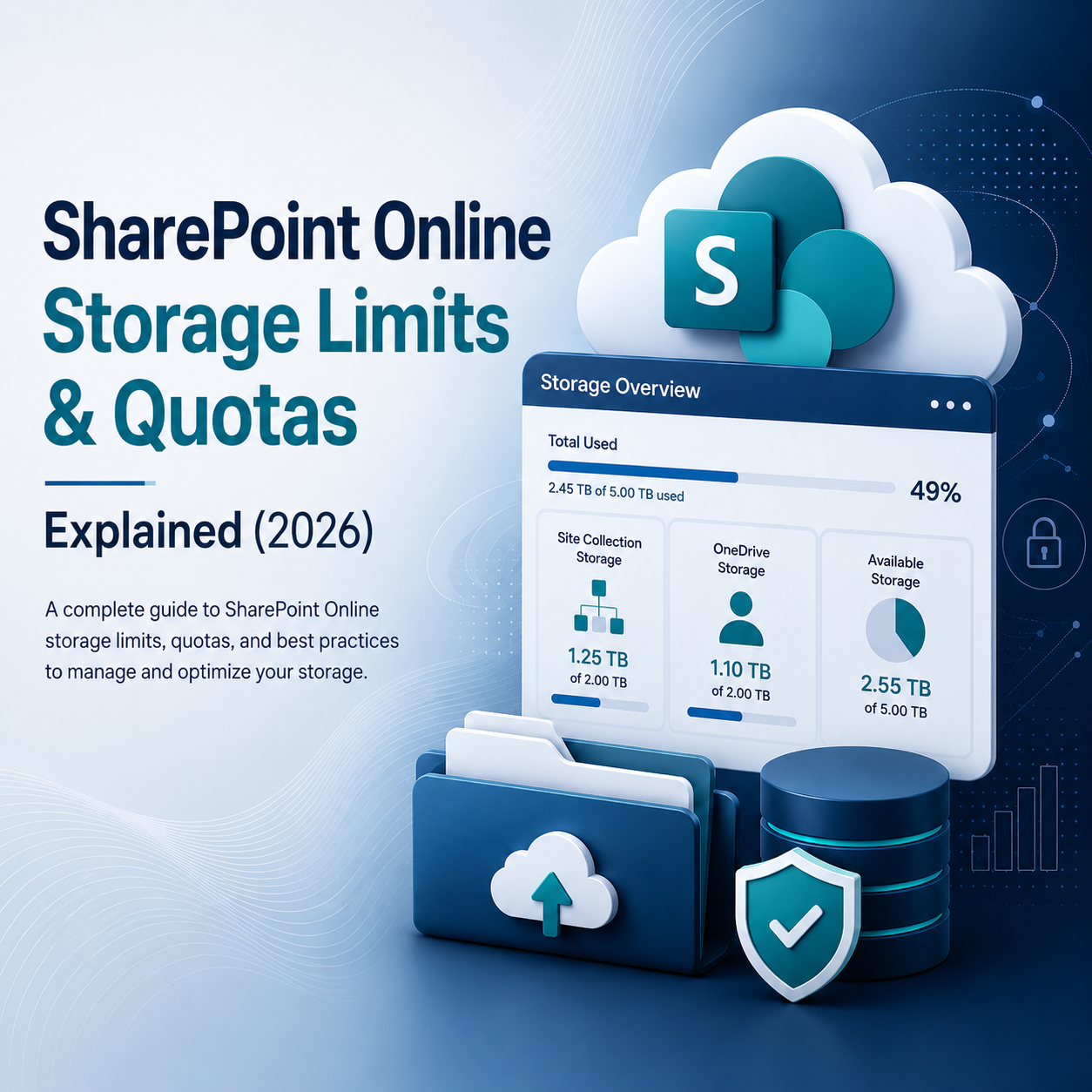
SharePoint Online storage in 2026 is generous but not unlimited. Whether you are planning a file-share migration, sizing a new tenant, or trying to explain to finance why you need the storage add-on, the numbers you need are below. Sourced from Microsoft's SharePoint Online service description.
Tenant-Level Storage (2026)
- Base allocation: 1 TB per tenant.
- Per-license bonus: +10 GB per licensed user (Microsoft 365 Business / Enterprise).
- Pooled model: All sites draw from the tenant pool unless an admin sets explicit per-site quotas.
- Add-on: Extra SharePoint storage is licensed per GB per month from the Microsoft 365 admin center.
Quick Reference: Total Tenant Storage by Headcount
|
Licensed Users |
Base Allocation |
Per-User Bonus (10 GB × N) |
Total Tenant Pool |
|
50 |
1 TB |
500 GB |
1.5 TB |
|
100 |
1 TB |
1 TB |
2 TB |
|
200 |
1 TB |
2 TB |
3 TB |
|
500 |
1 TB |
5 TB |
6 TB |
|
1,000 |
1 TB |
10 TB |
11 TB |
Planning a migration? A single large file-share migration can consume 1 to 3 TB in a weekend. Use this table to confirm your headroom before you start your file share to SharePoint migration.
Site-Collection Limits
|
Limit |
Value |
|
Maximum size per site collection |
25 TB |
|
Maximum items per site |
30 million items |
|
List view threshold |
5,000 items per view (indexed columns work around this) |
|
Sites per tenant |
2 million |
File Limits
|
Limit |
Value |
|
Maximum file size |
250 GB per file |
|
Maximum URL path length |
400 characters (decoded path after the domain; site URL + folders + filename) |
|
Version history per file |
Up to 50,000 major versions (default is 500; configurable between 100 and 50,000) |
|
Reserved characters (not allowed in names) |
|
OneDrive Limits (For Reference)
- Default: 1 TB per licensed user.
- Expandable to: 5 TB for enterprise plans (E3/E5; request via support beyond that).
- Separate pool: Does NOT count against your SharePoint tenant storage.
Not sure which files belong in OneDrive versus SharePoint? Read our guide: OneDrive vs SharePoint vs Teams: Where Should Files Actually Live?
The Hidden Storage Killers Most Admins Miss
The limits above are well-documented. The two storage traps below are not, and they are responsible for most unexpected "storage full" alerts we see across client tenants.
1. Version History Bloat
Every version of every file counts against your tenant storage pool. SharePoint does not store incremental deltas. It stores full copies of each version.
Real-world example: A 50 MB PowerPoint deck with 200 saved versions consumes 10 GB of tenant storage from a single file. Multiply that across every actively edited document in a department site and version history alone can consume 30 to 40 percent of your total quota without anyone uploading a single new file.
The fix: Microsoft introduced automatic version history limits (version expiration policies) that trim old versions based on age and count. Set a tenant-wide version limit policy to cap major versions at a reasonable number (50 to 100) and enable automatic trimming of versions older than 60 to 90 days. Run this PowerShell to identify your worst offenders:
# Connect to SharePoint Online
Connect-SPOService -Url https://contoso-admin.sharepoint.com
# Find the top 10 sites consuming the most storage
Get-SPOSite -Limit All `
| Select-Object Url, StorageUsageCurrent, StorageQuota `
| Sort-Object StorageUsageCurrent -Descending `
| Select-Object -First 10 `
| Format-Table -AutoSize
2. Recycle Bin Retention
When users delete files, those files move to the first-stage recycle bin. If a user manually empties the first-stage bin (or after 93 days), deleted items move to the second-stage recycle bin for the remainder of the original 93-day window. The total retention period across both stages is 93 days from the original deletion date, not 93 + 93. Both stages count against your tenant storage quota the entire time.
After a large cleanup, migration cutover, or content restructure, hundreds of gigabytes can sit in recycle bins for up to three months while still consuming quota. If you have just completed a major content reorganization and your storage numbers are not dropping, check the second-stage recycle bin in the SharePoint admin center.
How to Check Your Usage
SharePoint Admin Center
Navigate to Reports → Storage in the SharePoint admin center. This view shows total tenant consumption, per-site breakdowns, and trending usage over time.
PowerShell
# Connect to your tenant
Connect-SPOService -Url https://contoso-admin.sharepoint.com
# Check tenant-wide storage quota and current allocation
Get-SPOTenant | Select-Object StorageQuota, StorageQuotaAllocated
# List all sites sorted by storage consumption (largest first)
Get-SPOSite -Limit All `
| Select-Object Url, StorageUsageCurrent, StorageQuota `
| Sort-Object StorageUsageCurrent -Descending `
| Format-Table -AutoSize
How to Raise a Per-Site Quota
PowerShell
Set-SPOSite -Identity https://contoso.sharepoint.com/sites/finance `
-StorageQuota 5242880 `
-StorageQuotaWarningLevel 4718592
# StorageQuota is in MB — 5,242,880 MB = 5 TB
# StorageQuotaWarningLevel is 4,718,592 MB = 4.5 TB (90% warning threshold)
Important: This command only takes effect when your tenant's site storage management is set to "Manual" in the SharePoint admin center (Settings → Site storage limits). If set to "Automatic" (the default), SharePoint manages per-site quotas from the central pool and this command will have no effect.
Admin Center
SharePoint admin center → Sites → Active sites → select the site → Storage.
When to Buy the Storage Add-On
For a 200-user tenant the base allocation is 1 TB + 2 TB = 3 TB. A single large file-share migration can consume that in a weekend. Purchase the add-on when either:
- You expect to cross 80% of the tenant pool within 12 months, or
- You need to guarantee a per-site quota above what the remaining pool supports.
Before buying additional storage, run a version history and recycle bin audit first. We regularly find 15 to 25 percent of consumed storage is recoverable through version trimming and recycle bin cleanup alone. That can delay or eliminate the need for the paid add-on entirely.
Backup Does NOT Count Against Storage
Microsoft 365 native retention and third-party backup products store their data outside your SharePoint quota. But there is one critical exception: archived and retention-hold content that lives in the Preservation Hold Library DOES count against your site storage. If your legal or compliance team has placed holds on large document sets, that data stays in the site collection and consumes quota until the hold is released.
Regular cleanup matters. Retention policies are not a substitute for intentional storage governance.
Not sure whether to buy more storage or clean up first? An MSPowerhouse storage and tenant architecture audit answers both questions in one week. We identify version bloat, orphaned content, and recycle bin waste before you spend a dollar on add-on licensing. Talk to our team.