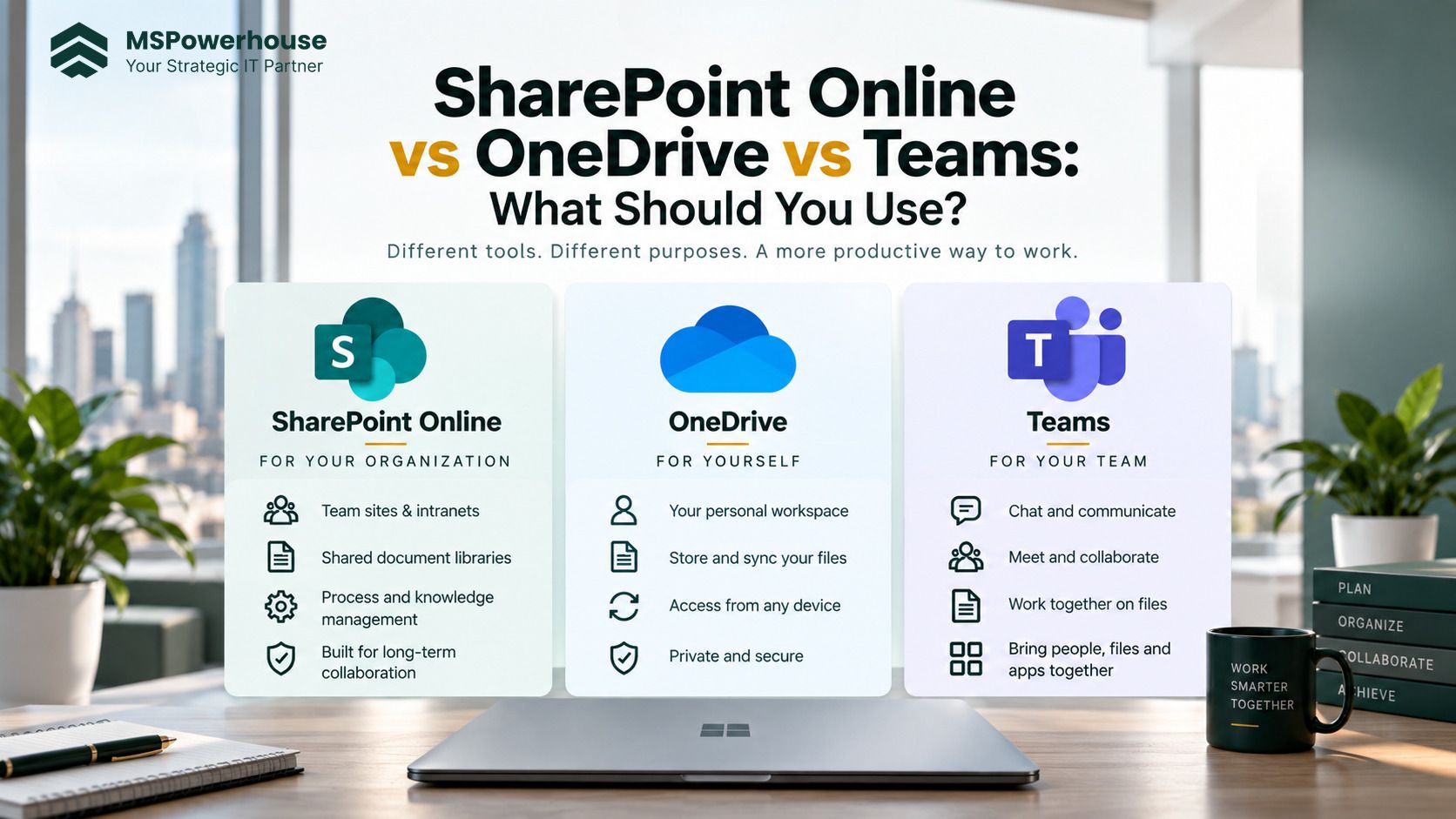
Most organizations treat SharePoint, OneDrive, and Microsoft Teams as three separate storage tools. Users ask which app they should open, IT admins field tickets about missing documents, and department heads create side folders across all three.
The confusion stems from a fundamental misunderstanding: Microsoft Teams does not have its own file storage.
In Microsoft 365, file storage is governed by an underlying architectural hierarchy. When an organization fails to define where files belong, collaboration breaks down into duplicated spreadsheets, orphaned permissions, and critical departmental records trapped inside employee personal accounts.
Here is the practitioner's architectural breakdown of how SharePoint, OneDrive, and Teams interact, where each workload belongs, and how to build a governance model your organization will actually follow.
The Technical Architecture: What Lives Where?
To establish a clean file policy, you must first understand how Microsoft 365 routes data under the hood. Per official Microsoft Teams and SharePoint interaction architecture, Teams is a collaboration interface layered on top of Microsoft 365 services:
Workload 1: When to Use OneDrive for Business
OneDrive is designed for individual work in progress. It is tied to an employee's personal Microsoft Entra ID (Azure AD) identity.
Ideal Use Cases:
- Personal drafts, scratchpads, and meeting notes that are not ready for team review
- One-off documents with temporary external sharing
- Personal copies of HR documents, training notes, and professional records
- Screenshots and temporary reference assets
The Operational Hazard: The 30-Day Offboarding Trap
The single greatest operational mistake companies make with OneDrive is allowing business-critical departmental files (e.g., master client spreadsheets, billing templates, project trackers) to live in a single employee's OneDrive.
According to Microsoft's retention and deletion lifecycle, when an employee account is deprovisioned in Entra ID:
- The user's OneDrive enters a default 30-day retention countdown.
- The user's manager is granted temporary delegation access.
- If the files are not migrated to a centralized SharePoint library before day 30, the entire personal library is permanently deleted from tenant storage.
Rule of thumb: If two or more people need access to a document to perform ongoing operational work, it does not belong in OneDrive.
Workload 2: When to Use SharePoint Online
SharePoint Online is the backbone of shared corporate knowledge, controlled records, and published communication. Unlike OneDrive, SharePoint sites are owned by the organization or department, not an individual user.
Ideal Use Cases:
- Company Intranets & Portals: Company handbooks, benefits guides, standard operating procedures (SOPs), and leadership announcements.
- Departmental Document Repositories: Accounting records, legal contracts, client deliverables, and marketing brand assets.
- Automated Business Processes: Libraries integrated with Power Automate flows, metadata columns, and enterprise search.
- Legacy File Share Migrations: Transitioning on-premise shared network drives (Z: drive) into the cloud. (See our step-by-step runbook on migrating file shares to SharePoint Online).
Key Advantages:
- Independent Lifecycle: Sites remain intact regardless of employee turnover or restructuring.
- Metadata & Filtering: Replaces deep, 10-level folder trees with structured custom views, tags, and indexing.
- Granular Governance: Enforce retention policies, sensitivity labels, conditional access policies, and data loss prevention (DLP) rules.
Workload 3: When to Use Microsoft Teams
Teams is the active collaboration cockpit. It brings together conversations, real-time audio/video calls, task boards, and working documents into a unified project hub.
Ideal Use Cases:
- Active Project Teams: Cross-functional groups working on client delivery, product sprints, or event planning.
- Departmental Daily Operations: IT support triage, sales pipeline reviews, and marketing campaign drafts.
- Real-Time Co-Authoring: Multiple engineers or analysts editing Word, Excel, or PowerPoint presentations simultaneously during a call.
Governance Warning: Channel Sprawl & Permission Fragmentation
When users create Microsoft Teams without administrative oversight, Microsoft 365 provisions an underlying SharePoint site collection for every single Team. Without governance, organizations end up with dozens of inactive, abandoned SharePoint sites containing ungoverned files. Limit Team creation to designated owners and implement Microsoft 365 group expiration policies.
The Impact on Microsoft Copilot & Security
With the rise of Microsoft Copilot for Microsoft 365, your file architecture is no longer just an organization question—it is a major security threshold.
Copilot respects existing Microsoft 365 permissions. It only surfaces content that the signed-in user has permission to view. However, many organizations historically granted broad permissions on internal SharePoint sites—often defaulting to Everyone except external users.
When an employee prompts Copilot: "Summarize our executive bonus discussions" or "Show me salary proposals for Q4," Copilot will scan every accessible document library. If sensitive HR or financial files were dumped into an open general team channel or misconfigured SharePoint site, Copilot will read and summarize them immediately.
Before deploying AI and Copilot across your business, auditing your SharePoint document libraries and restricting open tenant sharing is mandatory.
The 3-Bucket Rule: A Policy Your Users Can Remember
Do not hand your employees a 20-page governance manual. Train them on the 3-Bucket Rule:
| Bucket | Platform | The Employee Memory Hook | What Belongs Here |
|---|---|---|---|
| Bucket 1: "My Work" | OneDrive | "Only I need this right now." | Rough drafts, personal research, private 1:1 chat notes, scratch work. |
| Bucket 2: "Our Work in Progress" | Microsoft Teams | "My team is actively collaborating on this." | Project deliverables, meeting decks, shared weekly trackers, active sprint files. |
| Bucket 3: "The Company's Work" | SharePoint Online | "This is published, permanent company knowledge." | Signed client contracts, SOPs, corporate policies, finalized deliverables, intranet guides. |
A 5-Step Governance Implementation Framework
- Audit Existing File Locations: Inventory active file shares, personal OneDrives, and existing SharePoint libraries. Identify duplicate files and broken inheritance.
- Establish a Group Creation Policy: Restrict non-admin users from creating new Microsoft Teams on the fly to prevent ungoverned SharePoint sprawl.
- Implement Storage Quota & Lifecycle Controls: Set tenant-wide storage limits and configure automatic site archiving for inactive projects. (Read our guide on SharePoint Online storage limits and quotas).
- Configure Microsoft Purview Retention & Sensitivity Labels: Apply automated retention labels to financial, HR, and legal libraries to protect records against accidental deletion.
- Enforce Regular Permissions Reviews: Schedule quarterly access reviews for site owners to remove stale guest accounts and audit external sharing links.
When to Engage a Microsoft 365 Specialist
While standard group creation is straightforward, architecting enterprise-grade tenant governance requires deep systems expertise. Engaging a specialist is recommended when your organization is:
- Migrating multi-terabyte legacy network file shares or box/Google Drive storage into Microsoft 365 (explore our Cloud Migration Services).
- Restructuring permissions and data classification to prepare for a secure Microsoft 365 Copilot rollout.
- Consolidating tenants following an acquisition or business merger.
- Enforcing regulatory compliance (CMMC, HIPAA, SOC 2, or NIST 800-171) across SharePoint and OneDrive data repositories.
Transform Your Microsoft 365 File Architecture
MSPowerhouse helps growing enterprises and mid-market organizations build secure, scalable, and audit-ready Microsoft 365 environments. Whether you need to migrate legacy file shares, restructure SharePoint permissions, or secure your tenant for Copilot, our practicing Microsoft cloud engineers can help.