Most Microsoft 365 security incidents are not caused by external threat actors breaching tenant firewalls. They are caused by permission debt: an accumulated web of broken inheritance, misconfigured default groups, direct user access grants, and broad organization-wide sharing links.
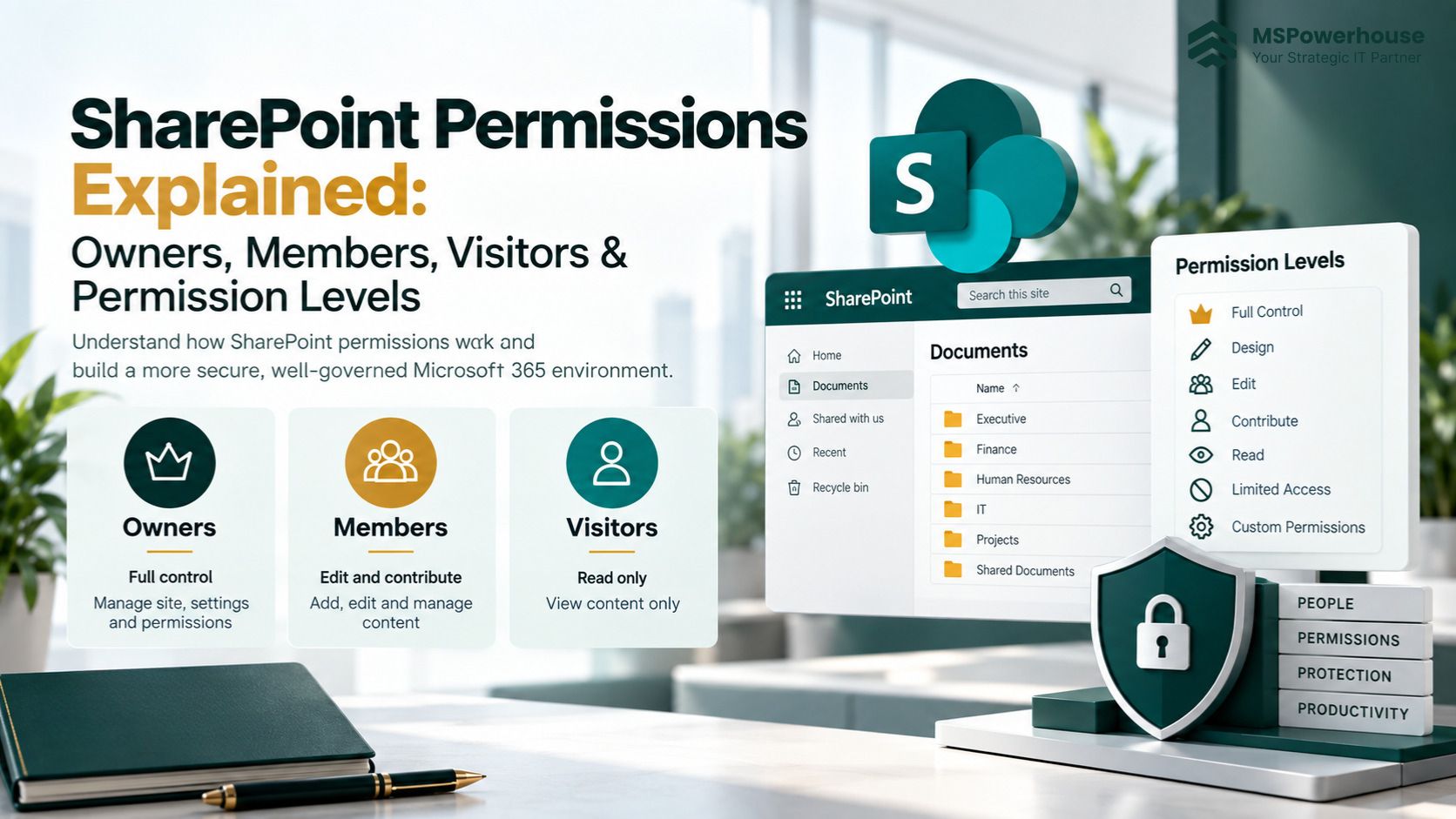
To end-users, SharePoint presents a simple model: Owners, Members, and Visitors. But underneath that interface sits a granular permissions matrix that governs list management, item deletions, sharing mechanics, and AI discovery.
When administrators misunderstand how these layers interact, two things happen: team members accidentally wipe out entire document libraries, and AI tools like Microsoft 365 Copilot surface confidential executive records to unintended employees.
Here is the practitioner's guide to how SharePoint permissions work, what each default level actually permits, and how to build a clean, supportable security model.
1. The Core Mental Model: Groups vs. Permission Levels
In modern SharePoint Online, permissions are established by connecting three distinct concepts:
- Principals (Who): Individual users, Microsoft Entra (Azure AD) Security Groups, or Microsoft 365 Groups.
- Securable Objects (Where): The Site Collection, Web, Document Library/List, Folder, or individual File.
- Permission Levels (What): A bundled collection of granular rights (e.g., Read, View Only, Contribute, Edit, Full Control).
According to Microsoft Learn documentation on default SharePoint groups, every standard SharePoint site provisions three default security groups mapped to pre-configured permission levels:
| Default Group | Default Permission Level | Primary Purpose | Typical Assigned Role |
|---|---|---|---|
| Site Owners | Full Control | Site administration, permissions management, template customization, site deletion | Department heads, system administrators, designated site stewards |
| Site Members | Edit (or Contribute in custom setups) | Day-to-day collaboration, adding, updating, and organizing documents | Core project team, departmental employees, active collaborators |
| Site Visitors | Read | Viewing, reading, and downloading documents without modifying content | Cross-functional observers, external auditors, general staff (Intranets) |
The Modern M365 Group Connection: On modern "Team Sites" (connected to Microsoft Teams), the site membership is synchronized with the Microsoft 365 Group. Team Owners become SharePoint Site Owners, and Team Members become SharePoint Site Members. Managing membership in Microsoft Teams directly governs file access in SharePoint.
2. The Dangerous Trap: Edit vs. Contribute
The single most widespread administrative mistake in SharePoint environments is assuming that Edit and Contribute are interchangeable. They are not.
Per Microsoft's permission level specifications, the functional difference is substantial:
| Action / Capability | Contribute Level | Edit Level (Modern Default) |
|---|---|---|
| View and read documents | Yes | Yes |
| Add and upload new files | Yes | Yes |
| Edit and update existing documents | Yes | Yes |
| Delete documents and list items | Yes | Yes |
| Add, edit, or delete entire document libraries | NO | YES (High Risk) |
| Modify library columns, views, and schemas | NO | YES |
| Disable document versioning settings | NO | YES |
Why This Matters: In modern SharePoint sites, the Site Members group is assigned Edit by default. That means every standard member of a Team has the technical right to delete the entire "Shared Documents" library, destroying folder structures and metadata views for everyone. On business-critical sites, best practice is to alter the Site Members group permission level from Edit to Contribute.
3. What Is "Limited Access" and Why Is It Everywhere?
Admins reviewing site permissions frequently see users or groups listed with Limited Access and wonder who granted it.
Limited Access is an automatic, system-managed permission. It is not something an administrator assigns manually.
When you share an individual document or subfolder with a user who does not have access to the parent site, SharePoint automatically grants that user Limited Access at the parent site and library levels. This acts as a "hallway pass" -- it gives the user permission to traverse the parent structure to open the specific item they were granted, without allowing them to see or open any other content in the library.
Operational Rule: Never attempt to manually edit or delete "Limited Access" entries. Doing so will break the user's access to the specific file or folder they were intentionally shared. If you want to clean up Limited Access, you must find and remove the unique item-level permission that created it.
4. The Hidden Tax of Broken Inheritance
By default, SharePoint enforces strict permission inheritance. A document library inherits permissions from the parent site; a folder inherits from the library; and a file inherits from the folder.
When an end-user clicks "Stop Inheriting Permissions" on a subfolder to create custom access, they introduce permission debt.
The Consequences of Broken Inheritance:
- Invisible Access Sprawl: Administrators can no longer tell who has access to what by looking at the site settings. Every unique folder must be inspected individually.
- The 5,000-Item Threshold Wall: When a document library exceeds 5,000 items, modifying or breaking inheritance on folders within that library often triggers a lock error, preventing security updates until items are reorganized.
- Performance Degradation: Having thousands of unique permission scopes within a single library significantly slows down search indexing and page render times.
The Architectural Rule: Break inheritance only at the Document Library level, never at the subfolder or file level. If a group of files requires a different security boundary than the rest of the department, create a separate document library with its own inherited permissions.
5. Modern Groups: M365 Groups vs. Entra Security Groups vs. SharePoint Groups
To maintain an audit-ready tenant, you must use the right group type for the right scenario:
| Group Type | Where Managed | Best Used For |
|---|---|---|
| Microsoft 365 Groups | Entra ID / Admin Center / Teams | Collaborative project spaces tied to Teams, Planner, and shared mailboxes. |
| Entra ID Security Groups | Entra ID / Active Directory | Role-based departmental access (e.g., SG-Finance-Employees). Ideal for granting read or contribute access across multiple sites from a centralized IT directory. |
| SharePoint Groups | SharePoint Site Settings | Site-specific access (Site Owners, Members, Visitors). Best practice is to nest Entra Security Groups inside SharePoint Groups rather than adding individual users. |
See how we applied automated, role-based SharePoint permissions for client deliverables in our SharePoint Proposal Permissions Management Case Study.
6. The Copilot Threat: How Permissions Sprawl Causes AI Data Leaks
The rollout of Microsoft 365 Copilot makes permissions governance an immediate cybersecurity priority.
Copilot respects existing tenant permissions, but it operates with extreme search efficiency. In traditional SharePoint environments, if an executive bonus spreadsheet was accidentally stored in an open site, it often went unnoticed because employees had to know the URL or navigate deep folder trees.
Copilot eliminates security-by-obscurity. When an employee asks: "Summarize our latest compensation proposals," Copilot indexes every library where that user has at least Read access -- including sites where Everyone except external users was lazily assigned.
### Remediation Moves:
Audit Broad Access
Identify and remove Everyone and Everyone except external users from internal document libraries.
Deploy SharePoint Advanced Management (SAM)
Use SharePoint Advanced Management to run data access governance reports on oversized sites.
Implement Restricted Content Discovery
For sensitive sites that cannot immediately be restructured, configure Restricted Content Discovery to exclude the site collection from organization-wide search and Copilot summarization.
7. A 5-Step Governance Framework for IT Admins
- Default Members to Contribute: On high-value sites, replace the default Edit permission with Contribute to protect library schemas and prevent accidental mass deletions.
- Nest Groups, Never People: Add users to Entra Security Groups, and nest those groups into SharePoint Groups. Never assign permissions directly to an individual user's account.
- Enforce the "Separate Library" Rule: When sensitive files need different permissions, build a dedicated document library rather than breaking inheritance on a subfolder.
- Audit External & Anonymous Sharing: Regularly review sites configured with modern sharing links to expire external guest access on stale accounts.
- Automate Permissions Auditing: Use PowerShell scripts to periodically detect broken inheritance scopes across your site collections.
When to Engage a SharePoint Specialist
While assigning basic permissions is simple, unwinding years of permission debt requires deep architectural planning. MSPowerhouse specialists provide expert assistance when you need to:
- Conduct a comprehensive Microsoft 365 Permissions & Data Governance Audit.
- Clean up over-permissive sites in preparation for a secure Microsoft 365 Copilot deployment.
- Migrate legacy network shares into SharePoint with automated permissions mapping (see our step-by-step file share migration guide).
- Design complex, automated custom permissions workflows with Power Automate and SPFx.
Secure Your SharePoint Architecture with MSPowerhouse
Eliminate permission sprawl and protect your corporate data. MSPowerhouse cloud engineers help organizations design, audit, and support secure Microsoft 365 environments.