Every Microsoft 365 tenant we audit has the same problem: no one knows where files should live. Personal drafts in Teams, contracts in someone's OneDrive, project docs scattered across three SharePoint sites. The fix is not a new tool — it is a clear rule everyone can remember. Here is the rule we ship on every Microsoft 365 engagement, plus the reasoning behind it.
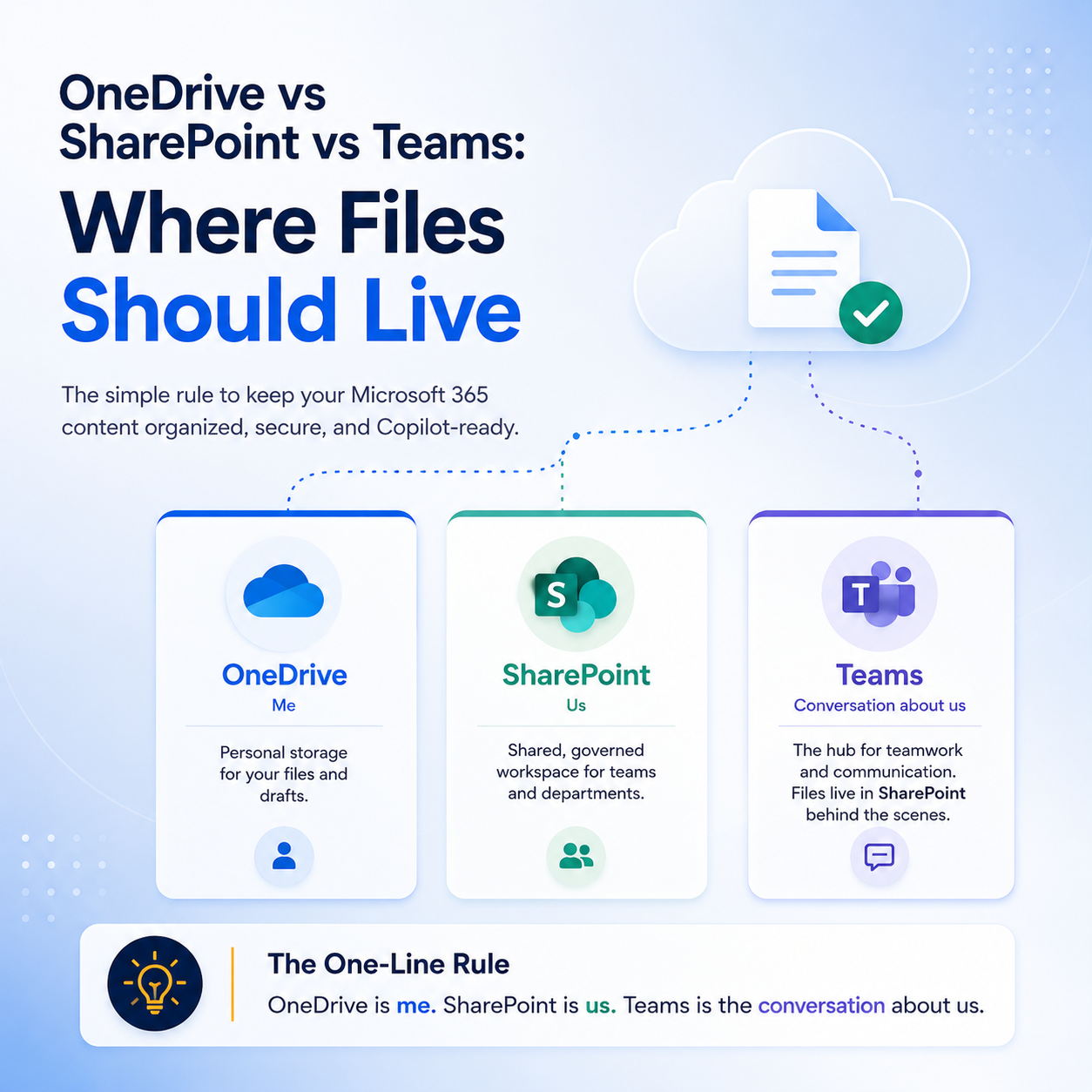
The One-Line Rule
“OneDrive is me. SharePoint is us. Teams is the conversation about us.”
What Each One Actually Is
OneDrive for Business
Personal cloud storage. One owner (the user). 1 TB by default, up to 5 TB. Perfect for drafts, personal notes, files you have not decided to share yet. When the user leaves, the content is retained for 30 days and then deleted unless an admin transfers it.
SharePoint Online
Shared cloud storage for teams and departments. Governed by Microsoft 365 groups. Structured permissions, metadata, retention labels, sharing controls. This is where anything two or more people need to work on should live. See our storage limits guide for capacity planning.
Microsoft Teams
A chat, meeting and collaboration UI on top of SharePoint. Every Teams team is backed by a SharePoint site — files in a channel land in that site's document library. Private channels get their own separate site. Users often do not realize this, which is exactly the confusion this article is here to solve.
File Storage Decision Matrix
|
Scenario |
Where It Belongs |
|
A draft proposal you haven't decided to share |
OneDrive |
|
Notes from a client call |
OneDrive → move to Teams once shared |
|
Signed contracts, MSAs, legal templates |
SharePoint (Legal site) |
|
Project plan the team is actively editing |
Teams channel (backed by SharePoint) |
|
HR policies, handbook, onboarding docs |
SharePoint (Intranet / HR site) |
|
Client deliverables, quarterly reports |
SharePoint (Client / Reporting site) |
|
Meeting recording |
Teams (auto-stored in OneDrive of organizer for 1:1s, in channel SharePoint for team meetings) |
|
Anything the whole company should read |
SharePoint (Intranet hub) |
The "Orphaned OneDrive" Trap
The single biggest governance problem in most tenants is shared files stored inside one user's OneDrive. When that user leaves, the files disappear on the 30-day clock. There are two concrete fixes:
- Publish the one-line rule above and enforce it during employee onboarding.
- Run a quarterly report on OneDrives with heavy external sharing — those are the files that should immediately be migrated into SharePoint libraries.
Copilot Changes the Stakes
Microsoft 365 Copilot searches across everything the user can access — OneDrive, SharePoint, Teams, and email. Content scattered across personal drives means Copilot answers are inconsistent between users (because permissions differ). Structuring content in SharePoint with clear ownership is a mandatory Copilot readiness step, not just administrative housekeeping.
Governance in Five Bullets
- One site per team or project: Do not allow site sprawl.
- Use Microsoft 365 groups: Avoid direct user permission grants.
- External sharing off by default: Enable on a per-site basis by exception only.
- Retention labels: Enforce on the top three site types (HR, Legal, Finance).
- Quarterly cleanup: Audit stale sites, orphaned OneDrives, and permission drift.
Want a governance model built specifically for your business? MSPowerhouse Microsoft 365 consulting ships a written policy and structured site model in the first 30 days.
Explore our Microsoft 365 consulting packages.