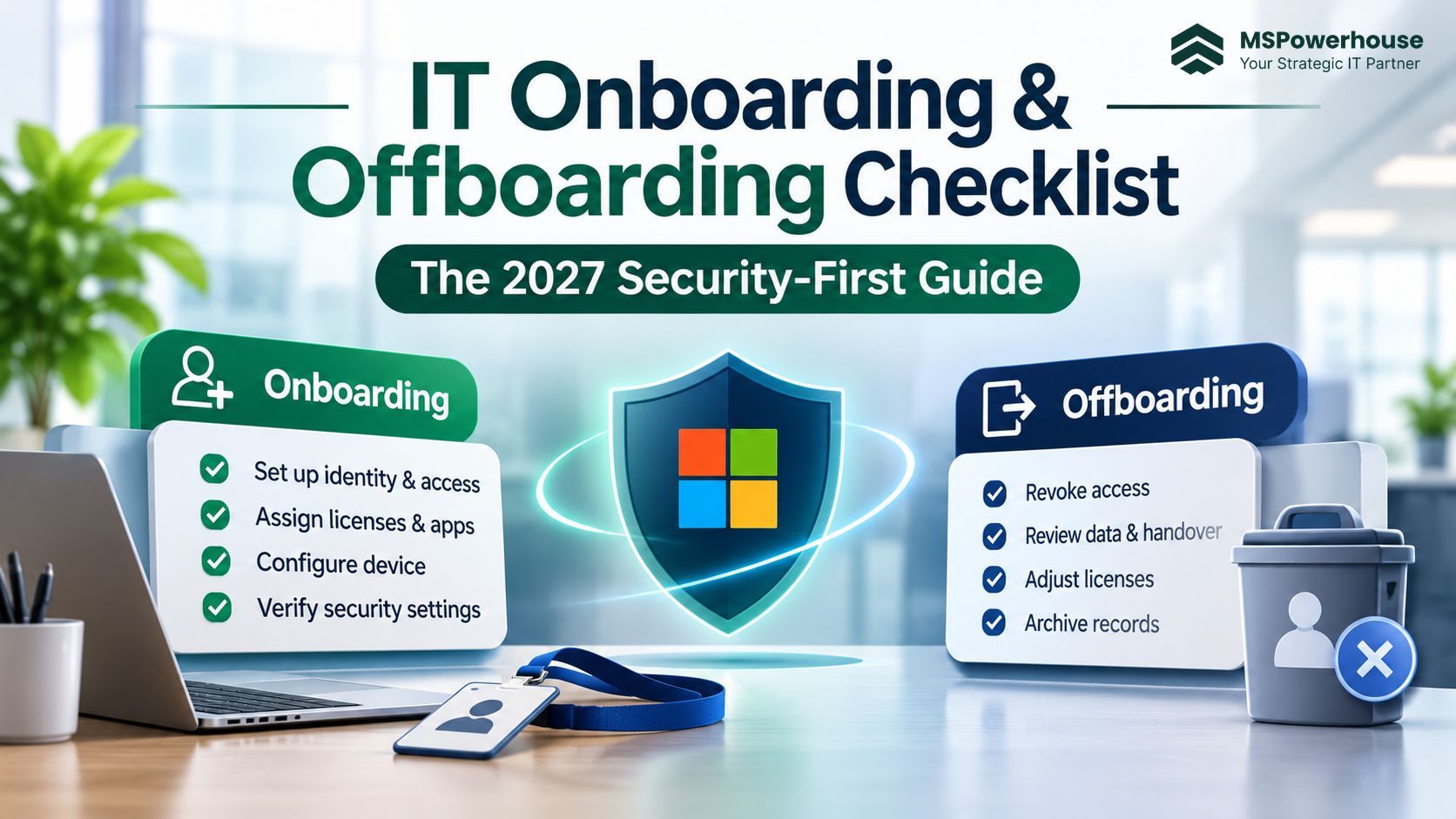
Practical Microsoft 365, Entra ID, and Intune workflows for new hires and departing employees. Prepared for 2027 planning using guidance checked on November 20, 2026.
A new employee needs more than a laptop and an email address. They need the right applications, approved access, a secure device, and someone to contact when setup fails. When an employee leaves, the same systems need a controlled handover: access must end, business records must remain available, and licenses must be reviewed without deleting data that the organization still needs.
These tasks involve HR, managers, IT, and sometimes legal or compliance teams. A checklist works only when it records who approved each action, when it should happen, and what evidence proves completion. This guide gives you a usable starting point for Microsoft 365 environments, including remote staff and personally owned devices.
The dates below are a planning template, not a Microsoft requirement or an MSPowerhouse service-level commitment. Adapt them to your hiring lead times, support coverage, application dependencies, and retention obligations.
1. Set ownership before automating anything
HR owns the employment event and confirmed start or departure time. The manager approves the role, application access, and business-data handover. IT implements the changes and verifies them. Legal or compliance decides whether records must be preserved under a hold or retention requirement.
Open one service-desk request containing the employee identifier, manager, department, work location, device ownership, approved access, effective time, and task owners. Use controlled fields rather than passing sensitive employee details through scattered emails. Record the time zone explicitly for remote teams.
The security objective is simple: give staff only the access their role requires, protect their authentication, and remove access when it is no longer authorized. CISA’s cross-sector performance goals provide a useful broader baseline for this work. CISA cybersecurity performance goals
2. IT onboarding checklist: prepare, enroll, verify
Prepare identities and equipment before the start date where possible. Do not activate access early just to mark a ticket complete. If you stage a disabled account, enable it at the approved time; a disabled account cannot complete its first interactive sign-in.
Table 1. Suggested onboarding milestones and completion evidence.
When / owner | Action | Evidence to record |
Before the start / HR + manager | Confirm start time, job role, device needs, and approved applications. | Approved request and named access owner. |
Before the start / IT | Create the identity; assign approved groups and licenses; arrange hardware and enrollment. | Identity record, license assignment result, and device tracking. |
Before the start / IT | Assign device configuration, encryption, endpoint protection, required apps, and update settings. | Policy assignments and a tested enrollment profile. |
Day one / IT + employee | Enable access at the agreed time; enroll the device; register the approved MFA method. | Successful sign-in, enrollment record, and authentication registration. |
Day one / IT | Verify encryption, endpoint protection, required apps, and access to business resources. | Actual device and application test results. |
First week / manager + IT | Resolve missing access and review unnecessary permissions or software. | Employee readiness check and tracked exceptions. |
First month / manager + IT | Review role fit, unused applications, and temporary access. | Access decisions and license review outcome. |
Figure 1. A controlled onboarding workflow for 2027 planning.
Use Autopilot and Intune with realistic expectations
Windows Autopilot supports provisioning Windows devices using configured cloud services. In a supported arrangement, the OEM or reseller can register the device and ship it directly to the employee. Autopilot does not mean every device requires no preparation or every setup finishes in a fixed number of minutes. Microsoft Windows Autopilot guidance
For supported Windows enrollment scenarios, Intune’s Enrollment Status Page can block device use while tracked applications and policies are being provisioned. Test the actual enrollment mode, application dependencies, and failure handling. Do not assume every security setting has finished applying just because the desktop is visible. Intune Enrollment Status Page configuration
Verify encryption and recovery-key escrow, endpoint protection health, update configuration, and required applications from the device’s reported state. Device compliance and device configuration are related but different: a compliance policy evaluates requirements, while configuration settings implement particular controls. Confirm the licensed endpoint-security product rather than assuming every Microsoft 365 plan includes the same capabilities.
For Apple devices, use the supported Apple Business Manager and Intune enrollment workflow. Choose authentication methods appropriate to the enrollment scenario. A Temporary Access Pass can support initial authentication in supported flows, but it is not a mandatory step for every new hire.
Assign access and licenses deliberately
Group-based access and licensing can reduce repeat work, but neither appears automatically because HR created a record. Configure the provisioning integration, group rules, application assignments, and required licensing first. Protect the employee attributes that drive those rules, and monitor assignment errors.
Dynamic group membership is not the same as automatic removal of every application permission when an account is disabled. Application provisioning, group evaluation, and vendor session handling have their own behavior. For smaller teams, a well-controlled manual approval process can be safer than an untested automation.
3. IT offboarding checklist: act at the approved time
For a planned departure, prepare the handover before the last working day and perform access removal at the approved time. For an urgent termination, coordinate the containment actions with HR. Do not postpone identity containment while waiting to finish mailbox or file transfers.
Table 2. Offboarding actions, owners, and proof of completion.
Priority | Required action | Verification |
At departure / IT | Disable sign-in and revoke Entra sessions. Address on-premises or federated identity where applicable. | Disabled account state and recorded revocation action. |
At departure / IT + app owners | Terminate application sessions; remove VPN and non-SSO access; revoke user-owned tokens where needed. | Vendor-specific deactivation or revocation results. |
Before destructive action / manager + legal | Confirm holds, retention, approved recipients, and business-data ownership. | Written preservation and handover decision. |
Same-day review / IT | Retrieve equipment or choose the appropriate wipe, retire, or app selective-wipe action. | Device receipt or actual remote-action status. |
After preservation / IT | Apply the mailbox and OneDrive plan; transfer app ownership; review removable licenses. | Delegation tests and documented license dependencies. |
Before closure / IT + manager | Check residual access, unfinished remote actions, subscription terms, and exceptions. | Completed evidence record and named owners for remaining work. |
Figure 2. Contain access first, then preserve data and verify completion.
Disabling an account is not universal instant logout
Microsoft recommends blocking new sign-ins and revoking refresh tokens. Existing access tokens and application-issued session cookies can still affect how quickly access ends. Continuous Access Evaluation improves response for supported services, but application behavior must still be checked. Close sessions directly in third-party applications where necessary. Microsoft guidance on revoking user access
Remove or revoke VPN access, certificates, personal access tokens, and other credentials the employee controls. Rotate shared secrets where the departing employee knew them. Check independently authenticated SaaS accounts even when the organization uses SSO for most tools. Removing MFA methods alone is not an account-containment strategy.
Choose the device action before sending it
An Intune wipe is a destructive operation. Standard wipe behavior removes data and returns the device to factory settings, with options and platform differences to review. Confirm authorization and any preservation requirement first. A device that is offline cannot be assumed to have completed a submitted remote action. Intune wipe guidance
Retire and app selective wipe are different actions. On supported enrolled personal devices, retire removes managed organizational content and settings according to platform behavior. App selective wipe targets organizational data in supported managed applications. Neither is a universal guarantee that every downloaded or copied business file disappears. Track the returned device or confirmed action outcome, not just the request submission.
4. Preserve mail and files before reclaiming licenses
The safest sequence is to block access, decide what must be retained, implement the workload-specific preservation plan, and only then remove licenses that are no longer required. Deleting the identity or removing a full Microsoft 365 suite too early can disrupt more than email.
Figure 3. Separate preservation decisions from license and billing decisions.
Exchange: conversion has conditions
Convert a user mailbox to a shared mailbox while the user mailbox is licensed. A shared mailbox can be unlicensed within the 50 GB limit, but larger mailboxes, archive features, litigation hold, or other advanced requirements can need licenses. Keep the underlying account because it anchors the shared mailbox, and keep its sign-in blocked. Microsoft shared-mailbox conversion requirements
Give only approved staff the permissions they need and test delegated access. Do not enable forwarding to a manager by default: customer information, HR correspondence, and privileged records can require a narrower handover. Where inactive-mailbox preservation is appropriate, follow the relevant Purview retention or hold process rather than treating it as an automatic result of departure.
OneDrive: account deletion and unlicensing are different
Microsoft’s deleted-user OneDrive process uses a tenant-configured retention period, with 30 days as the default. This describes deletion of the user account, not a universal 30-day period after removing a license. Check the actual tenant setting, applicable holds, and the documented deletion sequence. Deleted-user OneDrive retention guidance
Current guidance for unlicensed OneDrive accounts describes read-only status after 60 unlicensed days and archiving after 93 days, with further behavior depending on account state, retention, billing, and customer eligibility. The guidance also documents a cumulative nonpayment deletion clock and customer exclusions. Check the applicable branch rather than assuming an unlicensed OneDrive remains freely accessible indefinitely. Current unlicensed OneDrive account rules
Identify needed documents, grant approved temporary access, and move business records into an appropriate SharePoint library with reviewed permissions. Check sharing links and document ownership after migration. Teams messages, recordings, SharePoint files, and OneDrive files do not all use the same storage or retention mechanism.
5. Review app ownership and subscription commitments
Departing employees may own Power Automate flows, application connections, Power BI workspaces, shared calendars, cloud repositories, or vendor billing accounts. Transfer supported ownership, replace user-bound connections, and test the workflow under the new owner. Merely disabling the identity can leave business processes unable to run.
Record each subscription, assigned seat, renewal date, commitment period, and cancellation rule. Unassigning a license can free a seat for another employee, but it does not necessarily reduce the next invoice. Annual commitments and vendor-specific seat policies can prevent an immediate billing reduction. Report reassigned capacity separately from actual reduced spend.
Avoid savings estimates based on a generic Microsoft 365 price. Calculate savings from your actual contracted rates and the date you can reduce the purchased quantity. This keeps the review useful to finance rather than overstating the result.
6. Measure outcomes, not checked boxes
Use a short monthly operations review to find repeat failures. Track the percentage of new hires ready at their approved start time; time from departure to recorded identity containment; unresolved device actions; residual application access; and completed data handovers. Report exceptions with an owner and due date.
A ticket should distinguish requested, submitted, and verified actions. “Wipe submitted” is not “device wiped.” “License unassigned” is not “invoice reduced.” “Sessions revoked” is not proof that every application has stopped accepting an existing session. These distinctions make the evidence useful during incident response and internal reviews.
7. How MSPowerhouse can help
MSPowerhouse can help review your existing onboarding and offboarding process, configure supported Microsoft 365 and Intune workflows, and establish repeatable checks for identity, devices, and business-data handover. Explore Microsoft 365 consultation
For ongoing operations, the scope should clearly define HR notification, support hours, approvals, application coverage, retention responsibilities, and verification. Explore managed IT services
If your current process depends on a spreadsheet and last-minute emails, start with a review of one new hire and one departure. Use the findings to agree on ownership, remove unnecessary access, and make the next handover easier. Book a free IT consultation with MSPowerhouse