
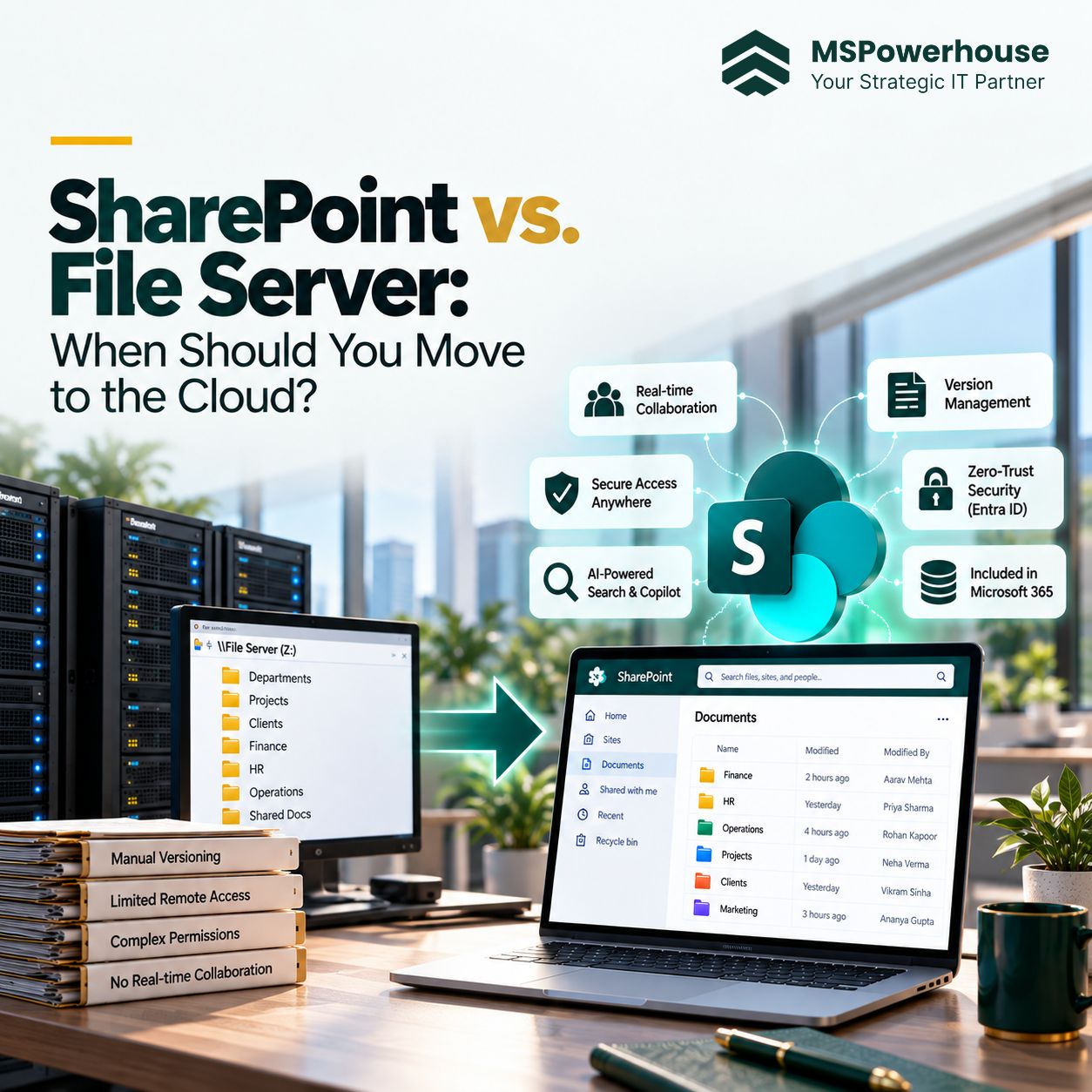
For decades, the on-premises Windows File Server operating over SMB was the undisputed standard for enterprise storage. Mapped network drives (the ubiquitous "Z: drive"), nested Active Directory security groups, and local NTFS access control lists formed the backbone of corporate document management.
Today, the economics and operational requirements of work have fundamentally changed. Hybrid workforces reject slow, fragile corporate VPNs. Distributed project teams demand real-time co-authoring rather than "file locked for editing" error prompts. Furthermore, with Microsoft terminating extended security support for legacy on-premises platforms like SharePoint Server 2016 and 2019 in July 2026, IT leaders face mounting regulatory pressure to modernize their file estate.
However, migrating from a file server to SharePoint Online is not a simple "copy-and-paste" IT exercise. A traditional file server is an unmanaged file bucket. SharePoint is a structured collaboration and governance platform backed by Microsoft Entra ID and Microsoft Graph. Blindly lifting and shifting an 8-level nested folder structure directly into SharePoint Online guarantees technical failure: broken permission scopes, 400-character URL path truncation errors, and soaring cloud storage bills.
Moving from a file server to SharePoint Online is an information architecture overhaul, not a data copy job. While SharePoint delivers secure mobile access, real-time co-authoring, and AI grounding for standard business documents, specialized high-IOPS workloads (such as AutoCAD, GIS spatial databases, and 4K raw video) must remain on local NAS or Azure Files.
The Operational Comparison: File Server (SMB) vs. SharePoint Online
Understanding when to decommission on-premises hardware requires evaluating how each architecture behaves across core operational dimensions:
| Operational Capability | On-Premises Windows File Server (SMB) | SharePoint Online & Microsoft 365 |
|---|---|---|
| Remote User Access | Requires clunky, latency-prone corporate VPNs (Cisco, Fortinet) or complex remote desktop infrastructure. | Native, encrypted access across browser, mobile, Teams, and OneDrive sync clients without VPN. |
| File Collaboration | Binary file-locking: opening a file locks it as "Read-Only" for all other users. | Simultaneous real-time co-authoring in Word, Excel, and PowerPoint with presence tracking. |
| Version Management | Manual filename bloat (e.g., Contract_v2_final_FINAL.docx) or reliance on Shadow Copies (VSS). | Automated, cloud-backed version history with one-click restore and automated version trimming. |
| Security & Identity | Traditional NTFS ACLs tied to local on-prem Active Directory domain controllers. | Zero-Trust Entra ID integration: Conditional Access, tenant-enforced MFA, and Purview sensitivity labels. |
| Disaster Recovery | Requires local tape/SAN backups, offsite replication, and hardware failover maintenance. | Microsoft geo-redundant storage SLA, 93-day recycle bins, and point-in-time library rollbacks. |
| AI & Search Discovery | Primitive keyword search; unindexed content across network shares. | Semantic search powered by Microsoft Graph, providing contextual data grounding for Microsoft Copilot. |
| Infrastructure Cost | Capital expenditure (CapEx) on physical servers, SAN storage, electricity, cooling, and OS licensing. | Operational expenditure (OpEx) included in standard Microsoft 365 business licensing. |
When You Should Move: 5 Business and Technical Triggers
Your Organization Operates a Hybrid or Fully Distributed Workforce
If your employees spend their days tethered to VPN connections just to open basic Word and Excel documents, your network share is actively hurting productivity. SMB protocol performance degrades sharply over high-latency WAN connections. Migrating departmental shares to SharePoint Online allows employees to work securely from any managed device without VPN overhead.
Hardware Refresh Cycles and Approaching Warranties
When physical on-premises storage arrays or Windows Server host licenses approach end-of-life, purchasing replacement SAN hardware and Windows Server 2025 CALs demands significant capital outlay ($15,000 to $60,000+). Migrating to SharePoint Online utilizes cloud storage already included in your existing Microsoft 365 Business Standard, Premium, or E3/E5 licenses.
Regulatory Pressure to Comply with Zero-Trust and MFA
Regulatory frameworks such as CMMC, SOC 2, and HIPAA increasingly mandate multi-factor authentication (MFA) and conditional access for every data touchpoint. Securing legacy SMB file shares behind modern MFA is technically complex and expensive. SharePoint Online natively enforces Entra ID Conditional Access, device compliance checks, and geofencing policies out of the box.
End of Support for SharePoint Server 2016 and 2019
Per the Microsoft Lifecycle Policy for SharePoint Server 2016 and SharePoint Server 2019, extended security updates terminated in July 2026. Running unpatched on-premises SharePoint farms exposes organizations to critical zero-day exploits and compliance audit failures, creating an urgent mandate to migrate to SharePoint Online.
The Strategic Need to Ground Microsoft 365 Copilot
Organizations investing in generative AI cannot utilize Microsoft 365 Copilot effectively while proprietary enterprise knowledge remains trapped on unindexed network drives. Moving core documents into SharePoint Online exposes content to Microsoft Graph, allowing AI agents to synthesize company knowledge accurately.
When You Should NOT Move to SharePoint: The Non-Negotiable Exceptions
A fatal mistake in cloud planning is assuming SharePoint can host every file type in your organization. Certain technical workloads must remain on local storage or specialized cloud file shares:
CAD applications rely on millisecond-level disk latency, external xref file dependencies, and byte-range locking. Opening a 2 GB Revit model over the OneDrive sync client causes severe file corruption and sync conflicts. Solution: Keep on local high-speed NAS or deploy Azure NetApp Files / Azure Files with SMB over QUIC.
GIS databases execute thousands of rapid micro-read/write operations per second. SharePoint is an object store, not a block-level or high-IOPS SMB file system.
Video editing suites (Adobe Premiere, DaVinci Resolve) require multi-gigabyte continuous read streams. Video production teams require dedicated 10GbE on-premises SANs.
SQL .bak files, VM disk images (VHDX), and programmatic log files belong in Azure Blob Storage or dedicated file servers.
The 5 Critical Migration Hurdles and How to Engineer Around Them
Reviewing real-world migration post-mortems (such as our 40TB File Share to SharePoint Migration Case Study) reveals five consistent technical failure modes:
The 400-Character URL Path Limit
On Windows file shares, users frequently create 10-level nested folder structures (e.g., Z:\Operations\2024\Projects\NorthEast\ClientABC\Invoices\Approved\PDF\Invoice_001.pdf). When moved to SharePoint, the URL includes the tenant name, site collection, and library name: https://company.sharepoint.com/sites/Operations/Shared Documents/.... Microsoft enforces a hard limit of 400 decoded characters. Breaching this limit breaks OneDrive synchronization and makes files unopenable in Office desktop apps. Remediation: Pre-scan paths using migration tools and flatten folder hierarchies into metadata columns.
The 5,000 Unique Permission Scope Wall
On NTFS file shares, administrators frequently right-click subfolders and break permission inheritance to assign custom access. In SharePoint Online, a document library can hold up to 30 million items, but exceeding 5,000 uniquely permissioned items triggers list view threshold locks, breaks search indexing, and blocks automated backups. Remediation: Break permissions only at the Document Library or Site Collection level—never at the subfolder level.
Redundant, Obsolete, and Trivial (ROT) Data Bloat
In typical file servers, 40% to 60% of stored data consists of obsolete files unaccessed for over 5 years, duplicate software installers (.exe, .iso), and personal employee clutter. Migrating ROT data wastes tenant storage quotas and triggers Microsoft's $0.20/GB/month overage fees ($2,400/TB annually). Remediation: Perform automated defensible deletion scans prior to data ingestion.
Delta Sync Windows and Bandwidth Throttling
Migrating multi-terabyte file shares across commercial internet connections can take weeks. Without proper wave planning, users continue editing files on the source server while migration jobs run. Per Microsoft migration performance guidance, SharePoint enforces dynamic API request limits. Remediation: Use the official SharePoint Migration Tool (SPMT) or Migration Manager, execute initial bulk seed copies weeks in advance, and schedule final delta passes over a weekend cutover window.
Identity Mapping (NTFS SID to Entra ID)
On-premises file shares assign permissions via Active Directory security identifiers (SIDs). If former employees or un-synchronized local groups exist in the source ACLs, migration tools error out. Remediation: Clean up Active Directory SIDs and map security to Entra ID Security Groups prior to cutover.
5-Step File Server to SharePoint Migration Framework
Executing an enterprise migration demands an engineering lifecycle with verified milestones, as outlined in the Microsoft File Share Migration Guide:
Discovery, Inventory, and ROT Scanning: Run PowerShell and discovery scripts across on-prem storage. Inventory file counts, size, age, extensions, and identify all path lengths exceeding 260 characters. Purge obsolete files under an approved corporate retention plan.
Target Architecture & Hub Topology Blueprint: Design a flat modern SharePoint architecture. Map functional departments into dedicated Team Sites connected by Hub Sites. Replace deep nested subfolder paths with metadata fields (e.g., Fiscal Year, Client Name, Status).
Pilot Migration Wave: Select a representative, low-risk department (e.g., Marketing or Training). Migrate content using SPMT or Migration Manager. Validate permission inheritance, test user co-authoring, and gather user feedback to refine the runbook.
Bulk Staged Seed & Incremental Delta Sync: Execute the initial bulk transfer weeks in advance. Run automated incremental delta passes every 3 to 5 days to capture newly modified files without impacting daytime network bandwidth.
Cutover Weekend, Source Freeze & Governance Handoff: Over the cutover weekend, run the final delta sync pass. Set the on-premises file share to "Read-Only" to prevent dual-entry corruption. Redirect users to their new SharePoint document libraries, deploy automated version expiration policies, and decommission on-premises hardware.
Modernize Your File Infrastructure with MSPowerhouse
Transitioning from legacy on-premises file servers to SharePoint Online unlocks modern hybrid productivity, eliminates expensive hardware refresh cycles, and secures corporate data behind zero-trust identity controls.
Whether you need to migrate 5 terabytes or 100 terabytes, resolve complex NTFS permission inheritance debt, or architect hybrid storage for specialized CAD workloads, MSPowerhouse provides senior Microsoft cloud migration engineers to ensure a seamless cutover with zero business interruption.
Explore Our Cloud Migration Services | Schedule an Infrastructure Assessment | SharePoint Architecture & Consulting