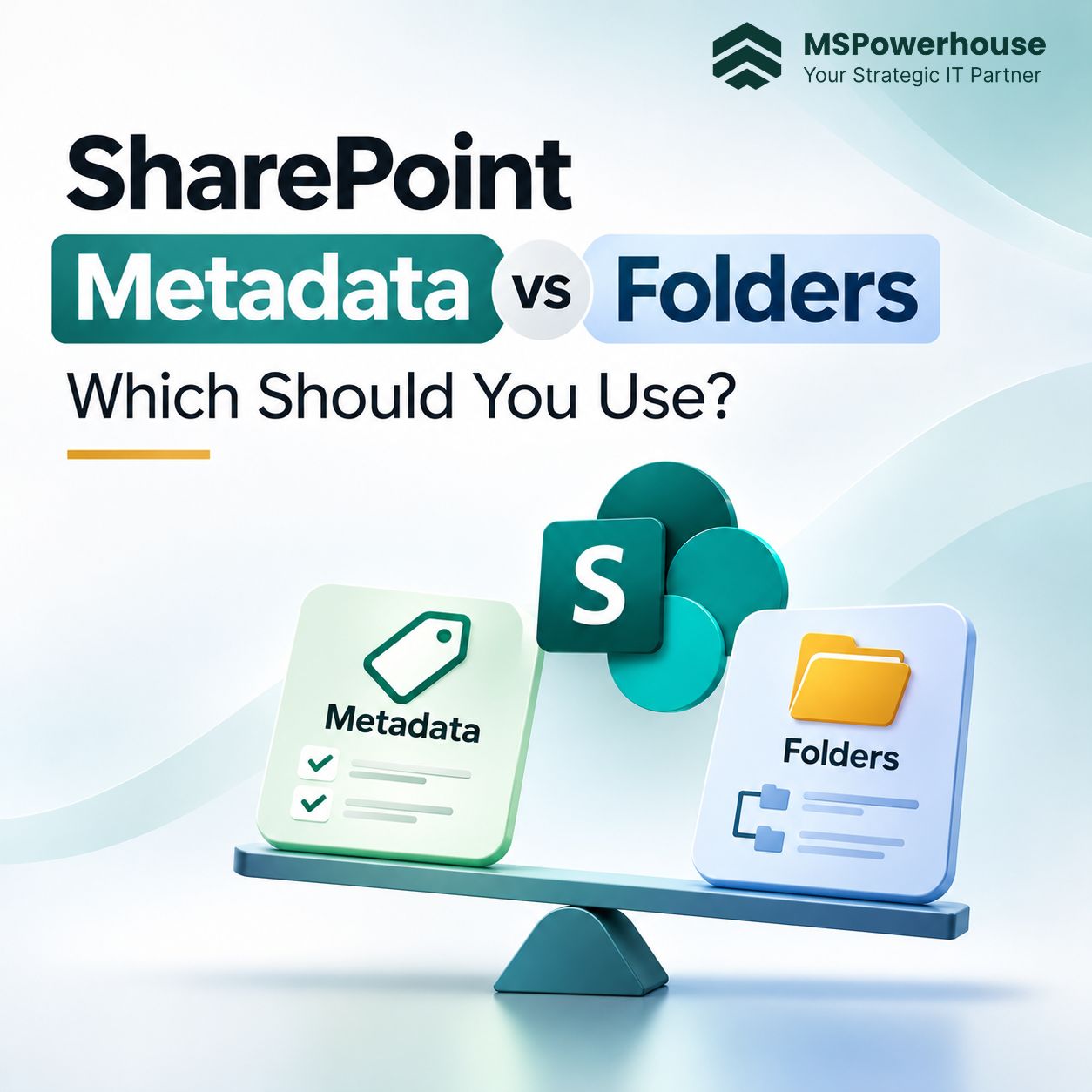
An Enterprise Architecture Blueprint for Information Architecture, 400-Character Path Limits, OneDrive Sync Reliability, and the Golden Hybrid Model in Microsoft 365
Executive Summary: Treating metadata and folders as mutually exclusive is the fastest way to derail a SharePoint deployment. Forcing employees into 100% metadata causes OneDrive sync lockups and immediate user revolt. Recreating deep on-premises folder trees leads to broken permissions, 400-character URL failures, and blind spots in Microsoft 365 Copilot. The production-proven standard is a shallow hybrid model: one to two levels of folders paired with Column Default Value Settings, automated indexing, and selective content-type tagging. |
The False Binary That Derails SharePoint Projects
During almost every file share migration to Microsoft 365, IT leaders and department heads find themselves locked in an ideological battle. On one side are the SharePoint purists who insist that folders are obsolete relics of the 1990s and that every document must be stored in flat libraries with mandatory metadata columns. On the other side are business users who have spent two decades navigating nested folder hierarchies in Windows Explorer and refuse to adopt any system that requires filling out form fields before saving a spreadsheet.
Both extremes fail when deployed in an enterprise environment. When an organization mandates pure metadata, end users bypass SharePoint entirely. They save files to personal OneDrive folders, email attachments back and forth, or create shadow cloud storage accounts. When an organization caves to user pressure and dumps millions of uncurated files into deep nested folder structures, the tenant suffers from chronic sync failures, uncontrollable permission inheritance sprawl, and degraded search performance.
In late 2026, the cost of getting this wrong is higher than ever. Tools like Microsoft 365 Copilot and Microsoft Purview do not browse folders the way humans do. They index content semantically across the Microsoft Graph. If your architecture is a maze of duplicated draft files buried six folders deep, Copilot will retrieve outdated, contradictory information. If your metadata is so complex that users enter dummy values just to clear upload prompts, your automated compliance policies and AI models will fail. Winning in SharePoint requires understanding the exact technical mechanics of both systems and deploying them in tandem.
Folders in SharePoint: Strengths, Weaknesses, and Hard Limits
Folders remain popular because they represent an intuitive spatial mental model. For day-to-day office workers, dragging a client agreement into a folder labeled 'Signed Contracts 2026' requires zero cognitive overhead. However, SharePoint is not a traditional Windows file server. It is a relational database built on Microsoft SQL Server and accessed via web protocols. Applying file server habits to SharePoint creates four severe architectural bottlenecks.
The Real Strengths of Folders
Zero Learning Curve: Users understand folders without training. They provide a predictable container for related files.
Desktop and Sync Friendliness: Users can sync a folder structure to Windows Explorer or macOS Finder and drag twenty files into place in seconds.
Bulk Container Operations: Archiving or moving an entire project is straightforward when all associated assets sit inside a single top-level container.
The Technical Pitfalls and Limits of Nested Folders
The 400-Character URL Path Trap: SharePoint Online enforces a strict 400-character decoded URL path limit. In a tenant URL like 'https://company.sharepoint.com/sites/Finance/Shared Documents/Audits/2026/Q1/Vendor_Reviews/Acme_Corporation/Drafts/Master_Services_Agreement_Final_v2.docx', every space converts to '%20' (three characters). Deep folder nesting frequently breaches this limit. When that happens, desktop Office applications refuse to save, OneDrive throws sync errors, and automated backups fail silently.
Permission Inheritance Fragmentation: When departments want specific people to see certain folders, administrators or power users break permission inheritance on subfolders. Microsoft documentation explicitly warns that performance degrades when a document library exceeds 500 unique permission scopes (with a hard ceiling at 5,000). Worse, when staff change roles or leave the company, audit teams cannot determine who has access to which subfolder.
File Duplication and Version Drift: If a marketing brochure touches both Product Engineering and Regional Sales, users in a folder-based system make two copies and paste one into each folder. Version histories diverge immediately, leading to confusion over which file contains the approved copy.
Mobile and Microsoft Teams Friction: Navigating through six layers of subfolders inside Microsoft Teams tabs or on a mobile device is slow and frustrating for remote employees.
Figure 1: Architectural Comparison Matrix evaluating Folders, Metadata, and the Hybrid Model across eight enterprise criteria.
Metadata in SharePoint: Dynamic Views, Automation, and Governance
Metadata is structured descriptive data attached to a document. Instead of placing an invoice in a folder path like '/Finance/2026/Invoices/Approved/', the file is saved directly into a Finance library with specific column tags: Fiscal Year (2026), Document Type (Invoice), and Status (Approved). This fundamentally changes how users interact with content.
Core Architectural Advantages of Metadata
Multi-Dimensional Filtering: A single document can be sliced and viewed in dozens of ways without duplicating the underlying file. A finance manager can create a view showing 'All Invoices Awaiting Approval', while an auditor views 'All 2026 Capital Expenditures' from the exact same library.
True Version Control: Because the file lives in one location, version history remains unified. When an employee edits the document, everyone sees the update immediately.
Native Workflow Automation: Power Automate flows trigger with precision based on metadata values. When a user updates the Status column from 'Draft' to 'Submitted', an approval workflow routes the document to the department director automatically.
Automated Compliance and Retention: Microsoft Purview compliance policies can automatically apply retention rules and sensitivity labels based on document type tags, ensuring legal compliance without manual intervention.
Figure 2: The Two Failure Modes: How deep nested folders create path errors, and how mandatory metadata locks up OneDrive sync.
The Technical Pitfalls Nobody Warns You About
While metadata is technically superior in theory, unguided metadata deployments frequently trigger catastrophic user resistance. Before designing an architecture, every architect must account for three documented technical realities.
1. The OneDrive Sync Client Mandatory Field Trap
This is the number one reason metadata implementations fail. If an administrator configures a SharePoint metadata column as 'Required', any file saved through desktop Microsoft Word or dragged into a synced OneDrive folder in Windows Explorer cannot prompt for the required property. As a result, SharePoint uploads the file in a 'Checked Out' state. The uploading user can see the file on their computer, but none of their colleagues can see it until someone logs into SharePoint via a web browser and fills out the missing fields. To end users, it appears that SharePoint has randomly hidden or eaten their work.
2. The 5,000-Item List View Threshold
SharePoint document libraries can store up to 30 million files, but a single view cannot query more than 5,000 items at once without throwing the infamous List View Threshold error. Folders provide a natural workaround because opening a folder only queries the items contained within that specific folder. In contrast, a flat library relying on metadata filtering will crash unless the administrator explicitly indexes the filtered columns (such as Department, Status, or Document Date) in library settings.
3. Taxonomy Bloat and User Fatigue
When IT committees design metadata schemas, they often require five to eight different dropdown menus per document (Department, Region, Project Code, Document Category, Sub-Category, Retention Class, Client ID). In practice, busy employees will select the first available option in the dropdown or pick 'Other' for every file. A mandatory taxonomy that users game is worse than a simple folder structure because the resulting data is actively misleading.
The Enterprise Solution: The Golden Hybrid Model
Enterprise organizations do not have to choose between the chaos of nested folders and the user friction of mandatory metadata. The proven standard is a hybrid architecture that combines shallow folder containers with automated background metadata tagging.
Figure 3: The Golden Hybrid Architecture: Users drag files into shallow folders, and SharePoint automatically applies metadata tags via Location-Based Defaults.
The Four Pillars of the Golden Hybrid Architecture
Pillar 1: Flat Site and Library Boundaries
Never use folders to manage security permissions. If Human Resources needs to restrict access to executive compensation files, do not create a private folder inside the general HR document library. Create a dedicated 'HR Executive' SharePoint site with its own Microsoft 365 Group and independent document library. This eliminates broken permission inheritance entirely.
Pillar 2: Shallow Folders (Maximum 1 to 2 Levels)
Limit folders strictly to one or two levels representing broad, immutable business dimensions. Good examples include Year ('/2026/') or Client Name ('/Acme Corp/'). Never create sub-sub-sub folders like '/2026/Q1/Invoices/Vendor/Approved/Drafts/'.
Pillar 3: Location-Based Metadata Defaults
Within SharePoint Library Settings, navigate to 'Column Default Value Settings'. This feature allows administrators to assign default metadata values to specific folders. For instance, when a user drops any file into the '/Finance/Invoices/' folder, SharePoint automatically tags that document with 'Department = Finance' and 'Document Type = Invoice'. The user gets the familiar drag-and-drop experience in Windows Explorer or Teams, while the system captures structured metadata silently in the background.
Pillar 4: Automated AI Tagging with SharePoint Premium
For high-volume transaction libraries (such as purchase orders, contracts, and statement of work documents), deploy pre-built document processing models through SharePoint Premium (formerly Syntex). These models automatically read document text, extract key entities (vendor name, contract expiration date, total dollar amount), and populate metadata columns without human intervention.
The 2026 Factor: How Microsoft Copilot Indexes Your Content
The deployment of Microsoft 365 Copilot has transformed information architecture from an administrative housekeeping task into an urgent business priority. Copilot does not click through folder trees. When an employee asks, 'What are the termination clauses in our vendor agreements?', Copilot performs semantic vector retrieval across the Microsoft Graph.
Figure 4: Microsoft Copilot Semantic Retrieval: How structured metadata prevents AI hallucination compared to nested folder trees.
Why Nested Folders Break Copilot
In deep folder environments, users frequently save multiple iterations of a document in different locations (for example, 'Vendor_Agreement_Draft.docx' in a personal folder, 'Vendor_Agreement_MarkedUp.docx' in a team folder, and 'Vendor_Agreement_Final.docx' in an archive folder). Because Copilot has access to everything the user can read, it synthesizes snippets from all three files, producing contradictory or legally outdated answers.
How Metadata Grounds Copilot Accurately
Structured metadata provides instant semantic anchors for AI retrieval. By including clean columns such as 'Status = Final Approved' and utilizing Microsoft Purview sensitivity labels, organizations can configure Copilot search scopes to prioritize authoritative records while filtering out working drafts. Furthermore, establishing clean site boundaries ensures that sensitive documents are never inadvertently surfaced in Copilot chat responses to unauthorized employees.
Workload Decision Matrix: When to Use What
Different business functions require different structural approaches. Use the following decision matrix to determine the optimal balance for each company workload.
Workload / Department | Recommended Architecture | Folder Depth | Primary Metadata Fields |
Active Project Collaboration | Hybrid Model | 1 Level (Project Name) | Project Phase, Deliverable Type, Review Status |
Contract & Legal Management | Pure Metadata + AI Tagging | 0 Folders (Flat Library) | Counterparty, Contract Type, Effective Date, Expiration Date, Value |
Finance & Accounts Payable | Hybrid with Location Defaults | 2 Levels (Fiscal Year / Month) | Vendor Name, Invoice Number, Payment Status, PO Reference |
Marketing Creative Assets | Metadata with Asset Views | 1 Level (Campaign Name) | Asset Type (Video, Image, Copy), Channel, License Expiry, Audience |
Human Resources Personnel | Separate Sites per Security Tier | 1 Level (Employee ID) | Record Class, Retention Date, Compliance Verification |
Company Intranet & Policies | Pure Metadata (No Folders) | 0 Folders (Flat Library) | Policy Category, Target Audience, Owner, Last Review Date, Status |
Step-by-Step Implementation and Migration Playbook
When transitioning from legacy file shares or restructuring an existing SharePoint environment, execute the migration in five deliberate phases.
Phase 1: File Inventory and Path Length Audit
Before moving any data, scan legacy file shares using tools like the SharePoint Migration Tool (SPMT) or Migration Manager. Identify any files with paths exceeding 260 characters, as well as file names containing unsupported characters (such as leading spaces or tildes). Flag inactive files that have not been modified in over three years for cold archive storage.
Phase 2: Information Architecture & Security Design
Define your site hierarchy. Replace single massive department sites with modular, hub-connected sites. Establish document libraries based on distinct security requirements. If content requires different access permissions, provision separate libraries rather than creating private subfolders.
Phase 3: Taxonomy & Column Default Setup
Create three to four high-value metadata columns per library. Stick to choice fields with limited options rather than open text fields to maintain data hygiene. In library settings, configure Column Default Value Settings on each top-level folder so metadata populates automatically upon upload.
Phase 4: Indexed Views and Navigation
Create custom public views sorted and filtered by your new metadata columns (for example, 'Recent Approved Documents' or 'Expiring Next 30 Days'). Index every column used in filters or sort operations to prevent 5,000-item list view threshold errors.
Phase 5: User Training Focused on Search and Views
Do not train users on abstract taxonomy concepts. Train them on tangible outcomes: how to use the search bar, how to switch library views, and how to pin dynamic views to Microsoft Teams channels. When users realize they can find a contract in three seconds without clicking through six folders, adoption follows naturally.
How MSPowerhouse Can Help
Restructuring an enterprise SharePoint environment while users are actively working is high-risk. Moving thousands of files breaks hyperlinks, disrupts automated workflows, and can accidentally expose confidential data if permissions are miscalculated.
MSPowerhouse specializes in enterprise Microsoft 365 information architecture, tenant optimization, and file share migrations. We help mid-market organizations and enterprises achieve clean, governed cloud collaboration without disrupting daily business operations.
Our SharePoint & Microsoft 365 Services Include:
Information Architecture Audits: Comprehensive discovery of your existing file shares, site collections, permission scopes, and 400-character URL bottlenecks.
Turnkey Cloud Migration: Proven, low-impact data migration using SPMT, Migration Manager, and custom automation scripts with zero data loss.
Hybrid Taxonomy & Governance: Implementation of the Golden Hybrid Model, Column Default Value Settings, and automated metadata pipelines.
Microsoft 365 Copilot Readiness: Security posture hardening, Microsoft Purview retention labeling, and permissions remediation before deploying Copilot.
Ongoing Managed IT Support: 24/7 proactive monitoring, user onboarding support, and continuous M365 tenant optimization.
Get Started with MSPowerhouse: Struggling with unmanageable folder mazes or failed metadata adoption in your SharePoint tenant? Book a free 30-minute architecture consultation with the senior engineering team at MSPowerhouse. We will review your current environment, identify path and permission risks, and provide an actionable migration roadmap. |
Authoritative Sources & Technical Documentation
Microsoft Learn: SharePoint Online limits 400-character decoded path, list view threshold, and unique permission limits.
Microsoft Learn: Information architecture in modern SharePoint Flat sites, hubs, navigation, and library boundaries.
Microsoft Learn: Planning SharePoint hub sites How hub-connected sites replace deep subsite trees.
Microsoft Learn: Semantic index for Copilot How Copilot finds content across Microsoft 365.
MSPowerhouse: SharePoint services Migration, information architecture, and governance support.