An Enterprise Administrator Blueprint for Governed External Collaboration, Entra ID B2B Security, Link Governance, and Microsoft 365 Copilot Oversharing Protection
Executive Summary: External file sharing in SharePoint is not a binary choice between complete lockdown and open vulnerability. Disabling external sharing altogether inevitably drives employees to unmanaged shadow IT tools like consumer Google Drive or personal Dropbox. Conversely, unmanaged sharing links and ungoverned guest accounts can expose confidential files to people outside the business, and overshared content can surface in Microsoft 365 Copilot answers for anyone who already has access. The enterprise standard is a governed zero-trust architecture: scoped tenant policies, dedicated client extranet sites, authenticated Entra ID B2B guest identities, enforced multi-factor authentication, and automated quarterly access reviews. |
The Modern External Collaboration Dilemma
Every modern business relies on external collaboration to operate. Product teams share architectural specifications with external contractors. Finance departments exchange audits with accounting partners. Legal teams review multi-party contracts with outside counsel. In fast-paced organizations, the demand to share files with clients, vendors, and suppliers is continuous and urgent.
Historically, enterprise IT departments responded to this reality with one of two extreme policies. The first approach was total restriction: IT disabled all external sharing at the tenant level and forced every file exchange through encrypted email attachments or secure FTP servers. While this looked secure on paper, it created massive operational friction. Business users faced with hard deadlines quickly found workarounds, uploading sensitive corporate intellectual property to personal cloud storage, unencrypted file-transfer sites, and unsanctioned messaging apps.
The second approach was default permissiveness: IT enabled external sharing across the entire tenant with minimal restrictions, allowing any employee to generate anonymous sharing links. Over several years, this led to massive permission sprawl. Thousands of orphaned sharing links remained permanently active on the web, forgotten guest accounts accumulated in Microsoft Entra ID, and confidential internal files became accessible to unauthorized third parties.
In late 2026, the risk of misconfigured external sharing has expanded dramatically due to the rapid adoption of enterprise AI. Microsoft 365 Copilot and enterprise search tools index content across the entire tenant based strictly on the user's effective permissions. When external links or broad internal permissions are carelessly assigned to document libraries, sensitive records become discoverable during routine search queries. Establishing a rigorous, scalable external sharing framework in SharePoint is no longer optional. It is a fundamental operational necessity.
The Governance Cascade: Tenant vs. Site Sharing Policies
The core architectural foundation of SharePoint security is the principle of the governance cascade. In Microsoft 365, external sharing settings exist at two primary tiers: the organization level (configured in the SharePoint Admin Center) and the individual site collection level. The fundamental rule of this architecture is straightforward: the tenant-level setting functions as a hard ceiling. An individual site collection can be configured to be equal to or more restrictive than the tenant ceiling, but it can never be more permissive.
Microsoft defines four distinct external sharing tiers across SharePoint Online:
1. Anyone (Most Permissive): Allows users to generate anonymous, publicly accessible links that require zero authentication. Anyone in possession of the web link can view or edit the file without providing an identity.
2. New and Existing Guests (Recommended Ceiling): Permits users to share sites and documents with external collaborators who authenticate using an existing Microsoft account, an Entra ID organizational account, or a verified email One-Time Passcode (OTP).
3. Existing Guests Only: Restricts external sharing strictly to external collaborators whose guest accounts have already been provisioned and approved in the organization's Microsoft Entra ID directory.
4. Only People in Your Organization (Most Restrictive): Completely blocks all external collaboration. Files and sites can only be accessed by authenticated employees and internal members of the home tenant.
To achieve a secure posture without crippling productivity, high-performing organizations set the tenant-level ceiling to 'New and existing guests' while keeping 'Anyone' links strictly disabled globally. If specific business units (such as marketing distributing public media kits) genuinely require anonymous links, administrators should isolate that capability exclusively to dedicated public sites with mandatory link expiration rules.
Individual site collections must then be classified and locked down based on their business sensitivity. Internal departmental sites, including Human Resources, Legal, Executive Leadership, and Payroll, must be explicitly restricted to 'Only people in your organization'. Dedicated client portals and vendor extranets can then be safely set to 'New and existing guests' or 'Existing guests only'.
Figure 1: The SharePoint External Sharing Governance Cascade (Tenant Ceiling vs. Scoped Site Policies)
Deconstructing the 4 Sharing Link Types and Threat Models
When an end-user clicks the 'Share' button in SharePoint or OneDrive, Microsoft 365 offers four distinct link options. Understanding the technical mechanics and threat profile of each link type is critical for preventing inadvertent data exposure.
Specific People Links (The Recommended Enterprise Standard)
Specific People links are the primary recommended mechanism for sharing files and folders with external clients, partners, and vendors. When a user generates a Specific People link, SharePoint does not create an open web token. Instead, it generates an access control entry bound strictly to the specific email address entered by the sender.
When the recipient clicks the link, Microsoft 365 validates their identity. If the recipient belongs to another Microsoft 365 or Entra ID organization, they sign in with their existing corporate credentials. If they use a non-Microsoft email system (such as Google Workspace or corporate IMAP), Microsoft issues a one-time passcode (OTP) to their email address. Crucially, if the external recipient forwards the link to an unauthorized third party, the forwarded recipient cannot open the document. Access is permanently bound to the verified email identity.
People in Your Organization Links (The Silent Lateral Risk)
Many Microsoft 365 tenants are configured out of the box with 'People in your organization' set as the default sharing link type. While this link type cannot be accessed by external parties, it poses an enormous lateral security threat internally.
A 'People in your organization' link functions as a tenant-wide authorization grant. Any internal employee who obtains the link, whether through an email thread, Teams channel, or corporate intranet post, is immediately granted access. Furthermore, these links expand the document's visibility to Microsoft 365 Copilot and Microsoft Graph. If an employee queries Copilot about sensitive executive discussions, and an unmanaged 'People in your organization' link exists on that file, Copilot can ingest and summarize that data. Enterprise administrators should change the default sharing link to 'Specific People' or 'People with existing access' in the SharePoint Admin Center.
People With Existing Access Links (Zero-Risk Navigation)
A 'People with existing access' link does not modify permissions or create new access control entries. It simply generates a clean direct web URL to the file or folder. If the recipient already possesses valid permissions to the site or library, the link opens seamlessly. If an unauthorized recipient clicks the link, access is denied. This link type is completely safe and should be favored for day-to-day internal collaboration.
Anyone Links (Anonymous Public Access)
Anyone links generate an unauthenticated bearer token embedded directly within the URL. Whoever holds the web address can view or edit the file with complete anonymity. Because access is unauthenticated, the tenant audit log cannot record which human individual accessed the data, recording only an anonymous token access event. Furthermore, Anyone links can be indexed by web search engines, forwarded infinitely, or leaked through browser extensions.
If your organization must enable Anyone links for specific workflows, administrators must enforce three non-negotiable tenant controls: mandatory link expiration (enforced at 14 or 30 days maximum), default permissions set to 'View' rather than 'Edit', and the enforcement of the 'Block Download' setting on sensitive file types.
Sharing Link Type | Authentication Requirement | Forwarding Vulnerability | Audit & Copilot Risk | Recommended Enterprise Policy |
Specific People | Entra ID B2B or Email one-time passcode | None. Access is bound strictly to the recipient email address. | Low. Identity is fully audited in Microsoft Purview; scoped access. | Primary standard for all external vendor and client collaboration. |
People With Existing Access | Inherited site or library permissions | None. Recipient must already hold valid access rights. | Zero. Does not create new permissions or expand search scope. | Recommended default for all internal team sharing and communication. |
People in Your Org | Any internal tenant account | High internal risk. Link can be forwarded across entire company. | High lateral risk. Exposes documents to tenant-wide Copilot discovery. | Restrict default link setting in SharePoint Admin Center. |
Anyone (Anonymous) | None. Completely unauthenticated bearer token | Critical. Can be published, forwarded, or indexed publicly. | Severe. Bypasses identity logging; impossible to attribute actions. | Disable globally, or enforce mandatory 14-day expiration and Block Download. |
Figure 2: SharePoint Sharing Link Types, Authentication Requirements, and Security Profiles
Identity Architecture: Entra ID B2B Guests vs. Email OTP
When external partners access SharePoint content through Specific People links, Microsoft 365 processes their identity through one of two distinct authentication models: Entra ID Business-to-Business (B2B) Collaboration or email One-Time Passcode (OTP) verification.
Entra ID B2B creates a formal guest user account object within your Microsoft Entra ID tenant. This guest object records the external user's primary email, company affiliation, and account status. Because a directory object exists, enterprise administrators can apply sophisticated governance policies, including requiring multi-factor authentication (MFA) via Conditional Access, enforcing Terms of Use agreements, and including the account in quarterly Entra ID Access Reviews. B2B guest collaboration is the gold standard for ongoing client projects, long-term vendors, and retainer consultants.
Email One-Time Passcodes (OTP), by contrast, represent a lightweight, ad-hoc authentication protocol. When an external collaborator receives a Specific People link and lacks an existing Microsoft account, Microsoft emails them a one-time passcode. With the SharePoint and OneDrive integration with Entra B2B enabled, that person is still added to your directory as a guest, so OTP removes the need for a Microsoft account but does not remove the need for guest reviews. OTP is best reserved for one-off document transfers or brief reviews.
Governance Dimension | Microsoft Entra ID B2B Guest Account | Email One-Time Passcode (OTP) Verification |
Directory Footprint | Permanent guest user object created in host Entra ID tenant. | Guest object is still created when SharePoint uses Entra B2B integration. |
Multi-Factor Authentication | Fully supported. Enforced via Entra Conditional Access policies. | Limited to external email inbox security; no tenant MFA challenge. |
Device & Compliance Controls | Can enforce Block Download, browser-only access, and Terms of Use. | Basic file-level permissions only; cannot enforce device compliance. |
Lifecycle & Recertification | Fully manageable via automated quarterly Entra Access Reviews. | Requires manual review or site-level permission removal. |
Licensing Impact | Included in Entra External ID licensing (first 50,000 MAU free). | Included standard in SharePoint Online / Microsoft 365 licenses. |
Recommended Use Case | Ongoing clients, strategic vendors, subcontractors, retainers. | Single-instance file delivery, short-term document reviews, RFP bids. |
Restricting External Sharing by Security Group and Domain
In an ungoverned environment, any employee can trigger an external sharing invite from any SharePoint library. This creates severe compliance risks because junior staff members or contractors may inadvertently share sensitive internal data with personal email addresses or competitors. IT can sharply reduce this risk by implementing two essential controls in the SharePoint Admin Center: Security Group Restrictions and Domain Allowlists.
Restricting Sharing to Specific Security Groups
Microsoft allows tenant administrators to limit external sharing capability exclusively to members of designated security groups. By creating a security group such as 'SG-ApprovedExternalSharers', IT ensures that only employees who have completed data governance training can initiate external shares.
If an employee outside this group attempts to share a document externally, the option is grayed out, displaying a clear notice that external sharing is restricted by organizational policy. Users who need external collaboration capabilities must submit a brief service ticket, ensuring business justification and administrative oversight.
Enforcing Domain Allow and Deny Lists
Domain restrictions allow organizations to govern which external organizations can receive shared content. Administrators can configure these rules globally or on specific site collections:
Domain Allowlist: Permits external sharing only with specific, pre-vetted corporate domains (such as trusted partners, prime contractors, and authorized clients). Any attempt to share files with consumer email domains like gmail.com, yahoo.com, or unlisted corporate domains is automatically blocked.
Domain Denylist: Permits sharing with all domains except specifically blacklisted competitors or high-risk public domains. While more flexible, it requires continuous administrative maintenance.
For high-compliance environments handling proprietary trade secrets or regulated client records, an explicit Domain Allowlist combined with security group restrictions gives you the tightest practical control over where files can go.
Enterprise Defense Layers: Purview, Conditional Access & Block Download
Securing external file sharing requires multiple overlapping security controls. Relying entirely on SharePoint link permissions leaves your organization exposed if an external collaborator's endpoint is compromised or if a file is downloaded to an unmanaged personal device. Modern enterprise security relies on Microsoft Purview and Microsoft Entra Conditional Access to protect data beyond the tenant perimeter.
Microsoft Purview Sensitivity Labels
Microsoft Purview Sensitivity Labels enforce security policies directly on files and SharePoint containers. When applied at the container (site collection) level, a sensitivity label can automatically enforce external sharing rules. For example, applying a 'Highly Confidential' label to an internal site automatically disables external sharing and blocks guests from being added to the underlying Microsoft 365 group, regardless of what an administrator attempts to configure manually.
When applied at the document level, sensitivity labels embed cryptographic rights management directly into the file headers. If an authorized vendor downloads an encrypted financial model, the encryption travels with the file. If that vendor leaves the engagement or the contract expires, IT can immediately revoke access cryptographically, rendering the local copy unreadable.
Conditional Access and 'Block Download' Policies
When external partners access your SharePoint environment, they almost always connect from unmanaged personal laptops or third-party corporate devices outside your Mobile Device Management (MDM) control. Allowing external users to download raw proprietary files to unmanaged endpoints creates enormous data leak risks.
By deploying Entra ID Conditional Access policies integrated with SharePoint Online, administrators can enforce the 'Block Download' policy for external guests. External collaborators can open, review, and collaborate on Word, Excel, PowerPoint, and PDF files seamlessly inside Office for the Web in their browser, but the options to download, print, cut, copy, or sync files to local disk are completely disabled. This allows productive vendor collaboration while keeping enterprise intellectual property permanently contained within the host tenant boundary.
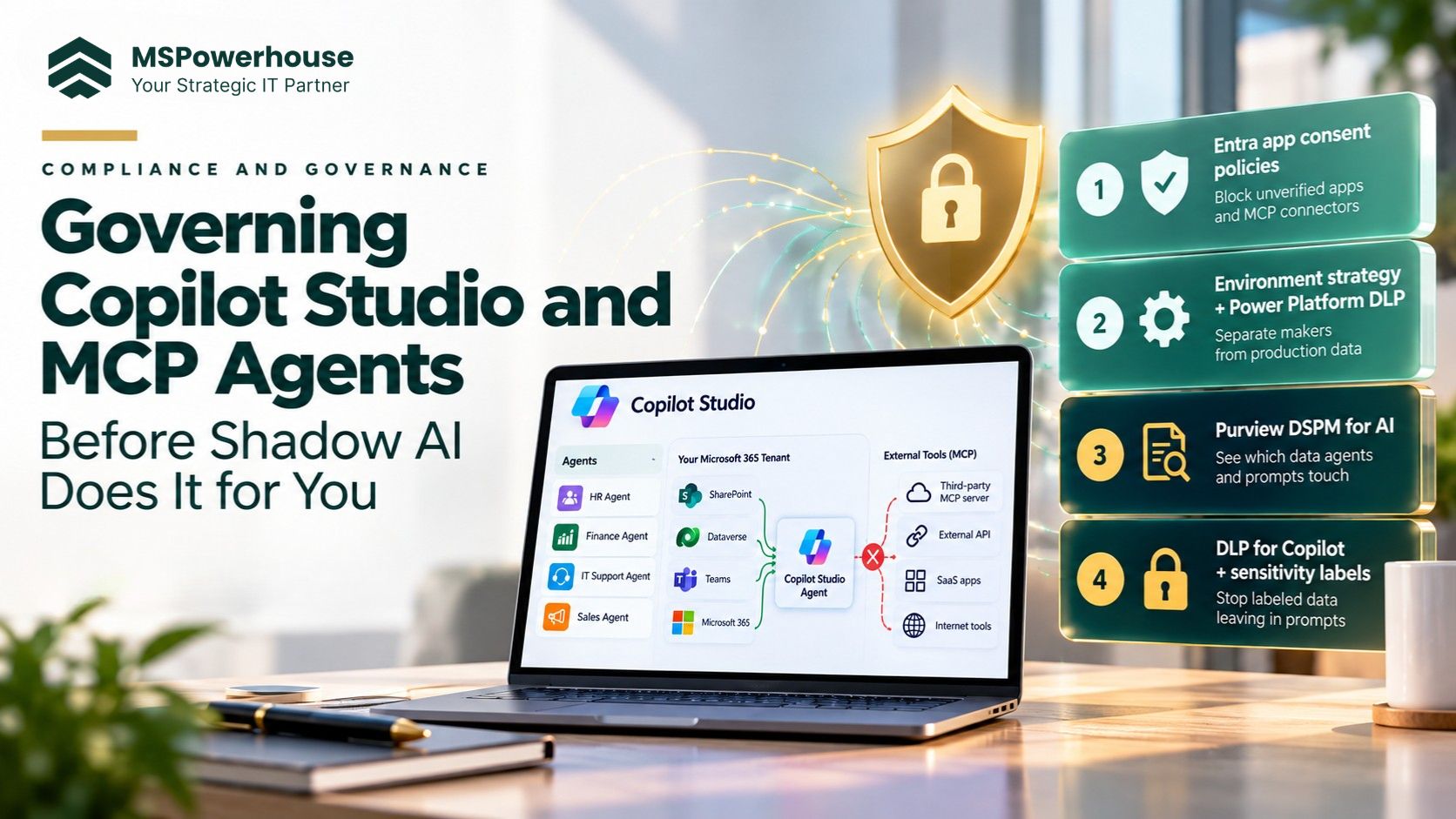
Figure 3: Enterprise Collaboration Defense Layers (Purview Encryption, Conditional Access, and Copilot Safeguards)
Microsoft 365 Copilot and Oversharing Safeguards
The rollout of generative AI tools like Microsoft 365 Copilot has transformed SharePoint security from a back-office compliance concern into an immediate operational priority. Copilot does not bypass security; it operates with high fidelity within the user's existing permission context. If a user has read access to a document, Copilot can parse, summarize, and synthesize that document during everyday conversational prompts.
When organizations have years of ungoverned external sharing, loose 'People in your organization' links, and poorly structured permissions, Copilot acts as an amplifier of organizational oversharing. For example, if an internal folder containing executive compensation or acquisition targets was shared using a broad internal link, an employee asking Copilot a routine question about team budgets might receive a direct summary of confidential executive salaries.
To prevent AI oversharing while maintaining secure external collaboration, enterprise administrators must deploy three critical safeguards:
1. SharePoint Advanced Management (SAM) Audits: Leverage SAM Data Access Governance (DAG) reports to audit which SharePoint sites have the highest volume of broad sharing links and active external guests. Prioritize remediating sites containing sensitive labels.
2. Restricted Access Control (RAC): Deploy RAC policies to restrict access to sensitive site collections strictly to designated Entra ID security groups. Even if an external guest was inadvertently invited or holds a file link, RAC blocks the connection at the site boundary.
3. Restricted SharePoint Search: Exclude unreviewed historical sites from organization-wide search indexing until permissions are audited and cleaned.
The End-to-End Secure External Collaboration Lifecycle
Security is not a one-time configuration; it is an ongoing operational lifecycle. Without deliberate lifecycle management, active guest accounts and open sharing links compound continuously, creating massive permission debt. Enterprise IT must implement a structured, five-stage lifecycle framework for all external collaboration.
Figure 4: The 5-Stage Zero-Trust External Collaboration Lifecycle Framework
Stage 1: Scoped Invitation and Justification
External sharing must begin with business accountability. Employees submit a collaboration request naming the external partner, business purpose, expected duration, and target site collection. The request validates that the target domain is on the corporate allowlist and that the sharing user belongs to the approved external sharing security group.
Stage 2: Strong Identity Verification
When the external user accepts the invitation, Microsoft Entra ID provisions a B2B guest object. The user must complete multi-factor authentication (MFA) registration and electronically accept the organization's external Terms of Use and confidentiality agreements before access is granted.
Stage 3: Governed Workspace Collaboration
The external partner is placed strictly within a dedicated client extranet site with inherited library permissions. Folder-level unique permissions are prohibited. Conditional Access policies enforce browser-only access with file download blocking, protecting corporate IP while enabling real-time co-authoring.
Stage 4: Automated Access Recertification
Every 90 days, Microsoft Entra ID Access Reviews automatically prompt internal business owners and site managers. The site owner receives an email notification detailing all active guest accounts, last sign-in dates, and shared resources. The owner must explicitly attest to whether each guest still requires access. If the owner does not respond or denies access, the guest account and associated sharing links are automatically revoked.
Stage 5: Clean Offboarding and De-provisioning
When a project concludes, the site owner initiates offboarding. All active sharing links are invalidated, and the external guest user object is deleted or moved to an inactive state in Entra ID. Comprehensive audit logs are archived in Microsoft Purview for regulatory compliance.
Enterprise Implementation Checklist for IT Administrators
Deploying this architecture requires coordinated configuration across the SharePoint Admin Center, Microsoft Entra ID, and Microsoft Purview. IT teams should execute the following technical checklist:
Step 1: Configure Tenant Sharing Ceiling: Set tenant-wide external sharing ceiling to 'New and existing guests'. Disable 'Anyone' links globally unless specifically required for isolated marketing drop-boxes.
Step 2: Update Default Link Type: Change default sharing link from 'People in your organization' to 'Specific People' or 'People with existing access' to prevent lateral oversharing.
Step 3: Restrict Sharing by Security Group: Restrict external sharing permissions to a designated security group (e.g., 'SG-ApprovedExternalSharers') and mandate training before membership approval.
Step 4: Establish Domain Allowlists: Configure domain allowlists for sensitive client extranet sites, restricting collaboration strictly to authorized client and vendor email domains.
Step 5: Enforce Conditional Access & Block Download: Build a Conditional Access policy requiring MFA for all external guest user accounts and enforcing browser-only access with 'Block Download' on unmanaged endpoints.
Step 6: Deploy Purview Container Labels: Deploy Purview Sensitivity Labels to container sites and enable automated document watermarking and rights-management encryption on confidential data.
Step 7: Automate Quarterly Access Reviews: Configure automated quarterly Entra ID Access Reviews for all guest accounts and external sharing links with automated revocation on non-response.
Step 8: Monitor AI Oversharing via SAM: Run SharePoint Advanced Management (SAM) Data Access Governance reports monthly to identify and remediate overshared document libraries.
The External Sharing Governance Scorecard
Governance is only effective when measured against clear operational metrics. Enterprise IT leadership should track the following governance scorecard on a quarterly basis to verify security posture and prevent permission drift.
Governance Metric | Target Benchmark | Review Cadence | Remediation Action if Violated |
Active Anyone Links | Zero in general libraries (<5 in designated drop-boxes) | Monthly | Immediately revoke unauthorized anonymous links; reset site policy. |
Default Sharing Link Type | 100% set to Specific People or Existing Access | Quarterly | Revert tenant and site collection link defaults in Admin Center. |
Inactive External Guests (>90 Days) | Zero inactive guest accounts in Entra ID | Monthly | Execute automated de-provisioning script to purge stale guest objects. |
Access Review Completion Rate | >98% of business owner reviews completed on schedule | Quarterly | Escalate unreviewed sites to department heads; auto-disable guests. |
MFA Enrollment on External Guests | 100% enforced via Conditional Access | Continuous | Block guest account access until phish-resistant MFA is verified. |
Unmanaged Endpoint Downloads | Zero downloads permitted on sensitive/client sites | Continuous | Verify Conditional Access app control policy and browser enforcement. |
How MSPowerhouse Engineers Zero-Trust External Collaboration
Securing external file sharing across complex enterprise Microsoft 365 environments touches SharePoint Online, Microsoft Entra ID, Microsoft Purview, and Intune. Settings that are too strict break client work, and settings that are too loose create compliance and Copilot oversharing risk.
At MSPowerhouse, our certified Microsoft 365 Infrastructure and Security Specialists design and deploy production-grade external collaboration architectures tailored to your organization's compliance requirements:
Tenant External Sharing Audit: Comprehensive discovery of existing active external links, orphaned guest accounts, overshared libraries, and tenant-wide permission drift.
Zero-Trust Sharing Architecture: Establishing hierarchical site architectures, domain allowlists, security group restrictions, and Specific People link defaults.
Automated Identity Governance: Configuring Entra B2B lifecycle workflows, guest MFA requirements, and automated quarterly access attestation campaigns.
Purview & Copilot Guardrails: Deploying container-level sensitivity labels, Conditional Access block download rules, and SAM oversharing remediation to safeguard corporate data against AI leakage.
Whether your organization is preparing for a secure client extranet deployment, remediating permission sprawling ahead of a Microsoft 365 Copilot rollout, or establishing strict vendor governance, MSPowerhouse provides the engineering precision required to protect your data.
Schedule Your Free IT Architecture Consultation: Book a comprehensive 30-minute Microsoft 365 Security & Collaboration Consultation with our certified infrastructure architects. We will analyze your current tenant sharing posture, identify oversharing risks, and provide an actionable roadmap for secure, governed collaboration. Book your session at mspowerhouse.com/contact. |
Sources and Authoritative References
The technical specifications, architectural rules, and governance policies in this blueprint are validated against official Microsoft engineering documentation:
Microsoft Learn: External Sharing Overview in SharePoint and OneDrive: https://learn.microsoft.com/en-us/sharepoint/external-sharing-overview
Microsoft Learn: Change the External Sharing Setting for a Site: https://learn.microsoft.com/en-us/sharepoint/change-external-sharing-site
Microsoft Learn: Restrict External Sharing to Specific Security Groups: https://learn.microsoft.com/en-us/sharepoint/manage-security-groups
Microsoft Learn: Microsoft Entra External ID B2B Collaboration Overview: https://learn.microsoft.com/en-us/entra/external-id/what-is-b2b
Microsoft Learn: Manage Guest Access with Entra Access Reviews: https://learn.microsoft.com/en-us/entra/id-governance/manage-guest-access-with-access-reviews
Microsoft Learn: SharePoint Advanced Management (SAM) Overview: https://learn.microsoft.com/en-us/sharepoint/advanced-management
Microsoft Learn: Control Access From Unmanaged Devices in SharePoint: https://learn.microsoft.com/en-us/sharepoint/control-access-from-unmanaged-devices
MSPowerhouse IT Consulting and Managed Services: https://www.mspowerhouse.com/it-services