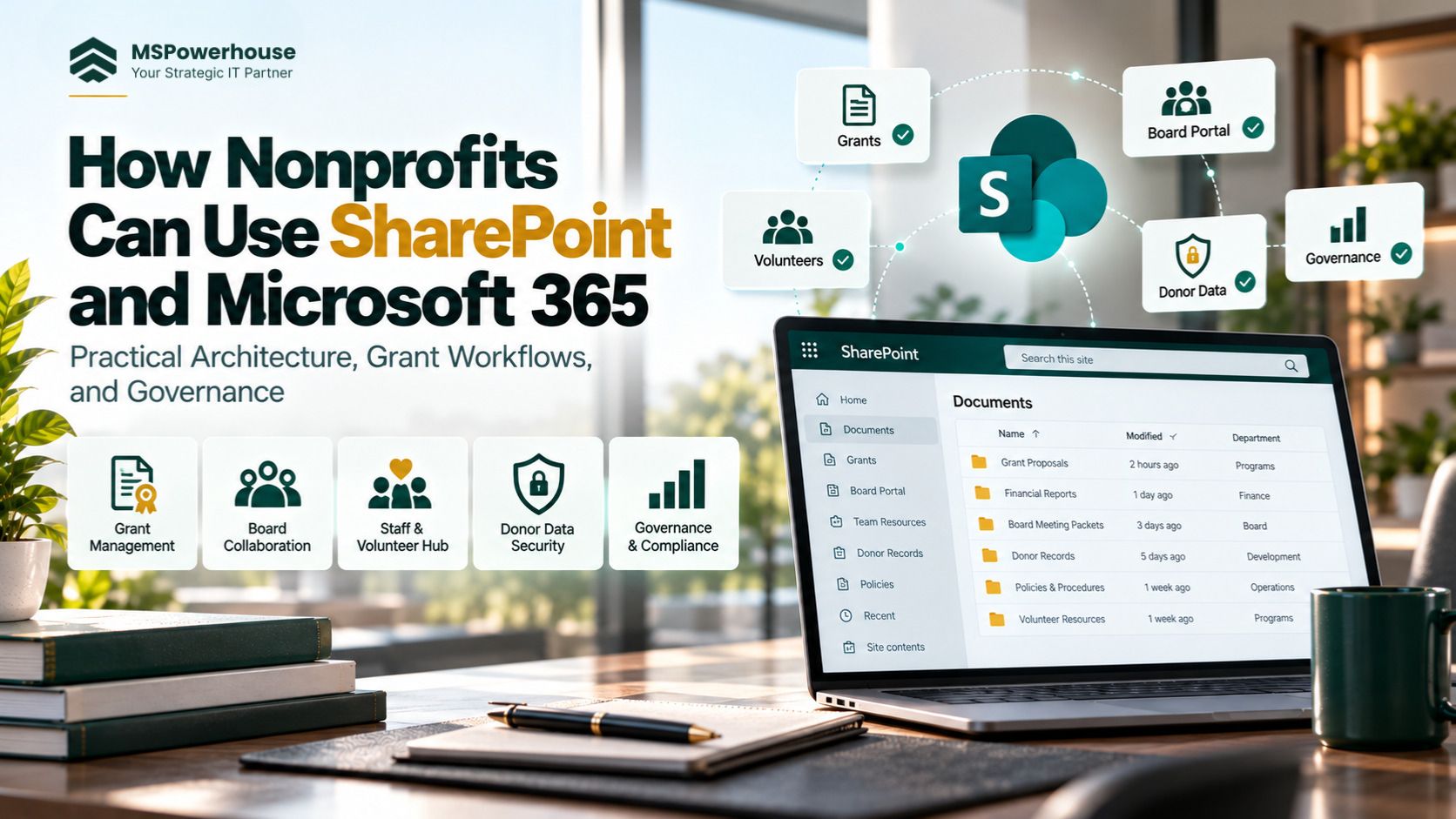
For nonprofit organizations, technology value does not come from deploying empty team sites or acquiring software grants you never configure. Real operational value comes from applying Microsoft SharePoint directly to high-friction administrative processes: grant reporting, donor privacy compliance, board governance, volunteer coordination, and cross-organization file sharing.
Most 501(c)(3) nonprofits qualify for substantial Microsoft philanthropy grants - including up to 300 free seats of Microsoft 365 Business Basic (which includes SharePoint Online, Teams, and OneDrive) and deeply subsidized pricing (up to 75% off) for advanced security tiers like Business Premium. Yet, an overwhelming majority remain trapped paying $15 to $20 per user monthly for third-party file sync tools (Dropbox, Box, Google Drive) while maintaining disconnected spreadsheets on personal hard drives.
The core challenge for nonprofits evaluating SharePoint is never whether the technology works. The challenge is designing a lightweight, supportable operating model that non-technical staff and volunteers can adopt immediately, without requiring an in-house IT department to manage complex backend infrastructure.
Maximize your Microsoft nonprofit grant by replacing unmanaged consumer file shares with structured SharePoint team sites. Focus on high-friction workflows first - such as grant management and board collaboration - using native permissions and automated lists rather than expensive third-party subscriptions.
The Nonprofit Tech Stack Reality: Grants vs. Underutilization
Microsoft offers one of the most generous technology philanthropy programs in the world, yet organizations frequently run into two costly extremes:
Paying for Redundant SaaS
An organization with 25 staff members often pays $4,500 to $6,000 annually for third-party cloud storage and e-signature tools despite holding licenses for Microsoft 365 that provide 1 TB of SharePoint cloud storage per user, document versioning, and Power Automate workflows at zero incremental software cost.
The "Everyone is an Owner" Chaos
Because nonprofit teams operate with a high-trust, collaborative ethos, tenants are frequently configured with open access where every employee and volunteer is designated an Administrator or Site Owner. This results in accidental file deletions, broken folder structures, and critical compliance exposures where volunteer staff can view restricted donor histories or executive payroll records.
Deploying a disciplined SharePoint information architecture enables nonprofits to eliminate third-party software waste while establishing strict data boundaries around sensitive mission records.
5 Core Operational Workstreams for Nonprofits
Centralizing Grant Documentation and Compliance Audits
Grant management is the lifeblood of most nonprofits, yet it routinely suffers from version chaos. Proposals, budget spreadsheets, award letters, and funder receipts end up scattered across staff inboxes and personal OneDrive folders. When a funder conducts an audit or an annual reporting deadline approaches, staff spend dozens of hours reconstructing records.
Build a dedicated Grants Management Site Collection. Use custom metadata columns (such as Grantor Name, Fiscal Year, Restricted/Unrestricted, and Reporting Deadline) instead of sprawling 8-level folder trees. Set automated retention schedules so historical audit records are preserved even if staff leave the organization.
Secure Board of Directors and Committee Workspaces
Board members are external fiduciaries who need access to financial statements, meeting minutes, and strategic plans, but should never have access to day-to-day operational files or employee records. Nonprofits frequently resort to emailing sensitive board packets as PDF attachments - creating major security liabilities.
Create a private, isolated Board Portal site. Leverage Microsoft Entra ID B2B Guest Access with enforced multi-factor authentication (MFA). Board members sign in with their existing organizational or personal credentials, accessing meeting packets in a secure read-only document library without consuming a paid Microsoft 365 license. Configure external sharing controls to disable link forwarding and prevent unauthenticated document downloads.
The Staff and Volunteer Resource Hub (Modern Intranet)
Nonprofits experience frequent turnover among seasonal staff, interns, and volunteers. When onboarding documentation lives in scattered emails, new team members take weeks to become productive.
Deploy a modern SharePoint Communication Site as your organizational hub. Centralize standard operating procedures (SOPs), brand guidelines, expense reimbursement policies, travel forms, and training videos in one branded, mobile-responsive portal. By setting the permissions to Read-Only for general staff, the leadership team ensures core guidance cannot be accidentally overwritten or deleted.
Automating Repetitive Intake and Approvals with Power Automate
Nonprofits waste hundreds of hours manually routing invoices, tracking donor thank-you milestones, and managing volunteer applications through email threads. When key personnel take leave, approvals stall.
Replace email chains with SharePoint Lists and Power Automate workflows. When a staff member submits a funding request or mileage reimbursement form, Power Automate routes the item directly to the Executive Director for one-click approval inside Microsoft Teams or Outlook. Every decision is logged automatically with an immutable timestamp, providing an audit-ready paper trail for annual 990 filings.
Governing Donor Privacy and External Partner Collaboration
Nonprofits handle donor payment histories, major gift pledges, and vulnerable client PII (personally identifiable information). If an organization deploys Microsoft 365 Copilot or broad internal search across an unmanaged tenant, sensitive donor records stored in "Public" sites become discoverable by all internal staff.
Enforce strict document library isolation for Development and Fundraising teams. Restrict site access strictly to authorized personnel, apply Microsoft Purview sensitivity labels to donor prospect files, and review sharing links routinely to eliminate unauthorized guest access. (See our real-world case study on building a Secure External SharePoint Access Management Application).
Strategic Matrix: Ad-Hoc Consumer Tools vs. Governed M365 Architecture
| Operational Dimension | Ad-Hoc / Consumer Cloud Setup | Governed SharePoint & M365 Tenant |
|---|---|---|
| Annual Software Cost | $3,000 to $10,000+ for redundant Dropbox, Box, or DocuSign licenses. | $0 to minimal cost utilizing Microsoft Nonprofit Grants (300 free Basic seats). |
| Security & Permissions | Individual sharing links; widespread "Anyone with link" exposure; no centralized MFA. | Role-based access via Entra ID; conditional access; automated external link expiration. |
| Grant & Funder Auditability | Scattered in staff inboxes; high risk of lost records during employee turnover. | Centralized metadata repositories; version history; automated compliance retention. |
| Board Collaboration | Unencrypted email attachments and unmanaged consumer personal cloud drives. | Dedicated B2B Guest Portal with MFA, read-only viewing, and blocked download options. |
| Workflow Efficiency | Manual PDF signing; paper-based receipts; spreadsheet tracking. | Automated Power Automate approval chains integrated directly into Microsoft Teams. |
5-Step Implementation Framework for Nonprofits
Because nonprofits rarely maintain dedicated full-time SharePoint engineering teams, implementation must focus on simplicity and maintainability:
Audit Current Software Subscriptions and Licensing Grants
Claim your Microsoft for Nonprofits grants via the Microsoft Nonprofits portal. Inventory all recurring SaaS expenses (Dropbox, Google Workspace, electronic signature tools) and map their functional equivalents directly to Microsoft 365 apps (SharePoint, OneDrive, Teams, Power Automate).
Define Data Ownership and Security Boundaries
Group organizational data into four discrete security tiers: Public Resources (Staff Hub), Departmental Operational Files (Programs), Restricted Financial Data (Finance/Grants/HR), and Confidential Leadership Data (Board/Executive). Keep permission groups small and managed via Microsoft 365 Groups.
Build a Lightweight Pilot (Grant Tracking or Onboarding)
Do not attempt a massive "all-at-once" cloud migration. Select one high-friction departmental workflow - such as tracking foundation grants or processing employee reimbursement requests - and build a clean SharePoint List with an automated Power Automate approval workflow. Gather user feedback from frontline staff before expanding.
Migrate Files and Retire Consumer Storage
Migrate active departmental files from legacy local servers or personal drives into modern SharePoint Team Sites using the Microsoft SharePoint Migration Tool (SPMT). Enforce a shallow folder structure and eliminate obsolete historical archives. (Learn how enterprise organizations handle large-scale data cutovers in our 40TB File Share to SharePoint Migration Case Study).
Document Standard Operating Procedures (SOPs) and Train Staff
A system is only as good as staff adoption. Create a simple, 2-page visual "Cheat Sheet" showing employees where to save files (OneDrive for personal drafts, Teams/SharePoint for shared team assets). Provide hands-on training to program managers and departmental leads to ensure self-sufficiency.
4 Common Mistakes Nonprofits Make with SharePoint
Over-Engineering Custom Solutions
Nonprofits frequently hire generic web developers who build complex, custom-coded web parts or bespoke Power Apps for tasks that out-of-the-box Microsoft Lists and standard Document Libraries handle effortlessly. When the developer leaves, the solution breaks and nobody knows how to maintain it.
Granting Global Admin Rights to Volunteers or Board Members
To solve quick access issues, non-technical admins often grant full administrative privileges to temporary volunteers or board members. This creates catastrophic security exposures and violates basic data stewardship standards.
Dumping Folder Trees Directly into SharePoint
Replicating decades of unorganized file-share folders into a single SharePoint library creates 400-character URL path errors and sync failures. Always flatten folder structures and separate content by department.
Forgetting to Turn Off Inactive Accounts
With high volunteer and intern turnover, organizations often leave departed users active in Microsoft 365, granting former staff continuous access to donor lists and internal documents. Deploy automated access review policies to revoke stale accounts.
Maximize Your Nonprofit's Microsoft 365 Investment
Technology should amplify your mission, not drain your operational budget. With a properly architected SharePoint environment, your nonprofit can protect donor trust, streamline grant reporting, and eliminate thousands of dollars in unnecessary software subscriptions.
Need expert assistance claiming your Microsoft grants, migrating legacy file shares, or configuring a secure board portal? MSPowerhouse provides tailored Microsoft 365 engineering and consulting for mission-driven organizations.
Explore Nonprofit SharePoint Services | Schedule an M365 Architecture Assessment | Microsoft Governance Guidelines